Computer Studies for Kids
Welcome to this course! Computers are all around us, from the big screens on our desks to the tiny chips in our toys. In this course, we will explore the amazing world of technology. You will learn how computers think, what makes them run, and how to use them safely to create wonderful things. Let’s start our journey to becoming computer experts!
Unit 1: Computer Hardware
In this unit, we will explore the physical parts of a computer—the things you can actually touch!
What is a Computer?
Before we dive into all the different parts of a computer, let’s ask a big question: What actually is a computer?
You might think of a computer as a laptop or a big screen on a desk, but computers are actually all around us!
A Smart Machine
At its simplest, a computer is an electronic machine that takes in information, works with it, and then gives you a result.
Think of it like a magic box:
- Input: You put something in (like pressing a key or touching a screen).
- Processing: The box “thinks” about what you did.
- Output: The box shows you a result (like showing a letter on the screen or playing a sound).
Computers are Everywhere!
Computers aren’t just the things with keyboards and big screens. They come in all shapes and sizes. Many things you use every day have tiny computers inside them:
- Laptops and Desktops: The most common ones we use for school or work.
- Smartphones and Tablets: Powerful computers that fit in your hand or pocket.
- Game Consoles: Your PlayStation, Xbox, or Nintendo Switch are special computers made for playing games.
- Smart Watches: These are tiny computers you wear on your wrist to tell time, track your steps, and show messages.
- Smart TVs: These use computers to let you watch Netflix, YouTube, or play apps directly on the screen.
- Kitchen Appliances: Modern microwaves, dishwashers, and refrigerators have simple computers to control timers and settings.
- Cars: Modern cars are like giant computers on wheels! They use them to control the engine, the brakes, the maps, and even the music.
- Washing Machines: They use a computer to know how much water to use and how long to spin your clothes.
- Toys: Many electronic toys, like robots or handheld games, have little computers that tell them how to react to you.
What Makes a Computer Special?
Unlike a toaster that only toasts bread, or a bicycle that only rolls when you pedal, a computer can be told to do many different things. By using different programs (or “apps”), the same computer can help you do your homework, watch a video, talk to a friend, or play a game.
Did you know?
- The first “computer” was a person! Long ago, the word “computer” was actually a job title. It was used for people (often women) who did very long and difficult math problems by hand for scientists and engineers.
- The world’s first electronic computer was huge. It was called the ENIAC, and it was finished in 1945. It was so big that it took up an entire room (about 30 meters long) and weighed as much as six elephants!
- A modern smartphone is much more powerful than the computers used to send people to the Moon. The Apollo 11 moon landing in 1969 was controlled by a computer with less “brain power” than a simple calculator or even a digital watch today.
Check Your Knowledge
1. What are the three main steps a computer follows?
- A) Eating, Sleeping, Playing
- B) Input, Processing, Output
- C) Starting, Stopping, Waiting
2. Which of these is NOT a computer?
- A) A smartphone
- B) A traditional wooden pencil
- C) A digital watch
3. Why is a computer more useful than a machine that can only do one thing (like a traditional clock)?
4. True or False: A computer is any machine that can follow instructions to work with information.
What is Hardware?
In the last chapter, we learned that a computer is a machine that follows instructions. But what is the computer actually made of?
What is “Hardware”?
Think about the things you use every day. Your favorite toy, a pair of scissors, or even your bicycle. What do they all have in common? You can pick them up, feel them, and touch them.
In the world of computers, we call these physical things Hardware.
Hardware is any part of a computer that you can actually touch with your hands. If you can bump into it, drop it (though you shouldn’t!), or feel its weight, it is hardware.
Hardware vs. Software
A computer needs more than just physical parts to work. It also needs instructions to tell those parts what to do. These instructions are called Software.
To understand the difference, think about a book:
- Hardware: The paper, the cardboard cover, and the ink on the pages. You can touch these!
- Software: The story inside the book. You can’t touch a “story,” but you can read it and understand it.
The computer is like the book, and the games or apps you use are like the stories. The computer (hardware) holds the apps (software).
Internal vs. External Hardware
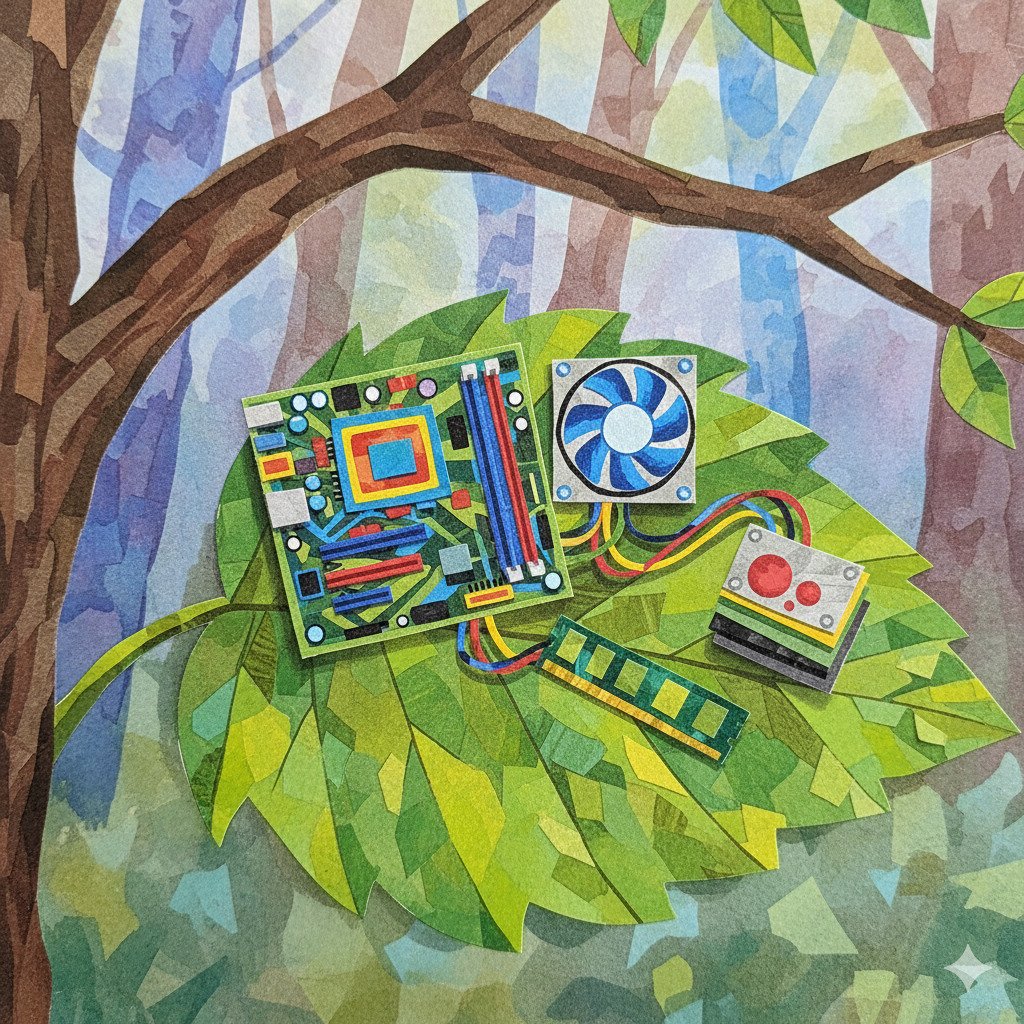
Not all hardware is easy to see. We can split hardware into two groups:
-
External Hardware (Peripherals): These are parts on the outside of the computer. You use these to talk to the computer, or for the computer to talk to you!
- Keyboard and Mouse: These are your “input” tools. You use them to tell the computer what to do.
- Monitor: This is the screen that shows you what is happening.
- Speakers: These let you hear sounds and music.
- Printer: This can take something from the screen and put it onto real paper you can hold.
-
Internal Hardware (Components): These are the “guts” of the computer, hidden away inside a plastic or metal box (called the computer case). These parts do the heavy lifting:
- CPU (Central Processing Unit): Often called the “brain” of the computer. It follows instructions and does calculations.
- RAM (Random Access Memory): This is the computer’s short-term memory. It remembers what you are doing right now, like which game is open.
- Motherboard: A big circuit board that connects all the other parts together, like a giant puzzle base.
- Power Supply: This takes electricity from the wall and gives it to all the other parts so they can wake up and work.
Why do we need different parts?
You might wonder why a computer has so many different bits and pieces. Why can’t it just be one big block?
Think of a computer like a sports team:
- The CPU is like the captain, making quick decisions and telling others what to do.
- The Hard Drive or SSD is like a library, keeping all the information safe for later, even when the computer is turned off.
- The Monitor is like a scoreboard, showing everyone what is happening in the game.
- The Cables are like the players passing the ball to each other.
Just like a team, no single part can do everything on its own. They all have to work together to make the computer run smoothly!
Did you know?
- NASA uses old hardware for safety. Newer isn’t always better! Some spacecraft still use older, simpler computer parts because they are less likely to break or be affected by space radiation than the high-tech parts in your phone.
- The “Motherboard” got its name for a reason. It is called the motherboard because it acts like a mother to all the other parts, providing them with power and letting them talk to each other. Smaller boards that plug into it are sometimes called “daughterboards”!
- A “Bug” was once a real insect! In 1947, a scientist named Grace Hopper found an actual moth stuck inside a computer, causing it to fail. She taped it into her notebook and called it “debugging”—a term we still use today for fixing computer problems!
Check Your Knowledge
1. Which of these is Hardware?
- A) A digital photo of a cat
- B) A computer mouse
- C) A level in a video game
2. If you are typing a story on a computer, which part is the “Software”?
- A) The keyboard you are typing on
- B) The words and the story itself
- C) The monitor showing the words
3. Why do we call the CPU the “brain” of the computer?
4. True or False: Internal hardware is the part of the computer you can see on your desk, like the screen.
The Brain of the Computer (CPU)
In the last chapter, we mentioned that the CPU is like the “brain” of the computer. But what does that actually mean? Let’s take a look inside!
Meet the CPU
CPU stands for Central Processing Unit.
While it’s the most important part of the computer, it’s actually quite small—usually about the size of a large cracker or a square of chocolate. It sits deep inside the computer case, tucked away on the motherboard.
We call it the “brain” because, just like your brain tells your arms to move or remembers your favorite color, the CPU tells every other part of the computer what to do. Without it, the computer wouldn’t know how to turn on, show a picture, or even react when you click a mouse.
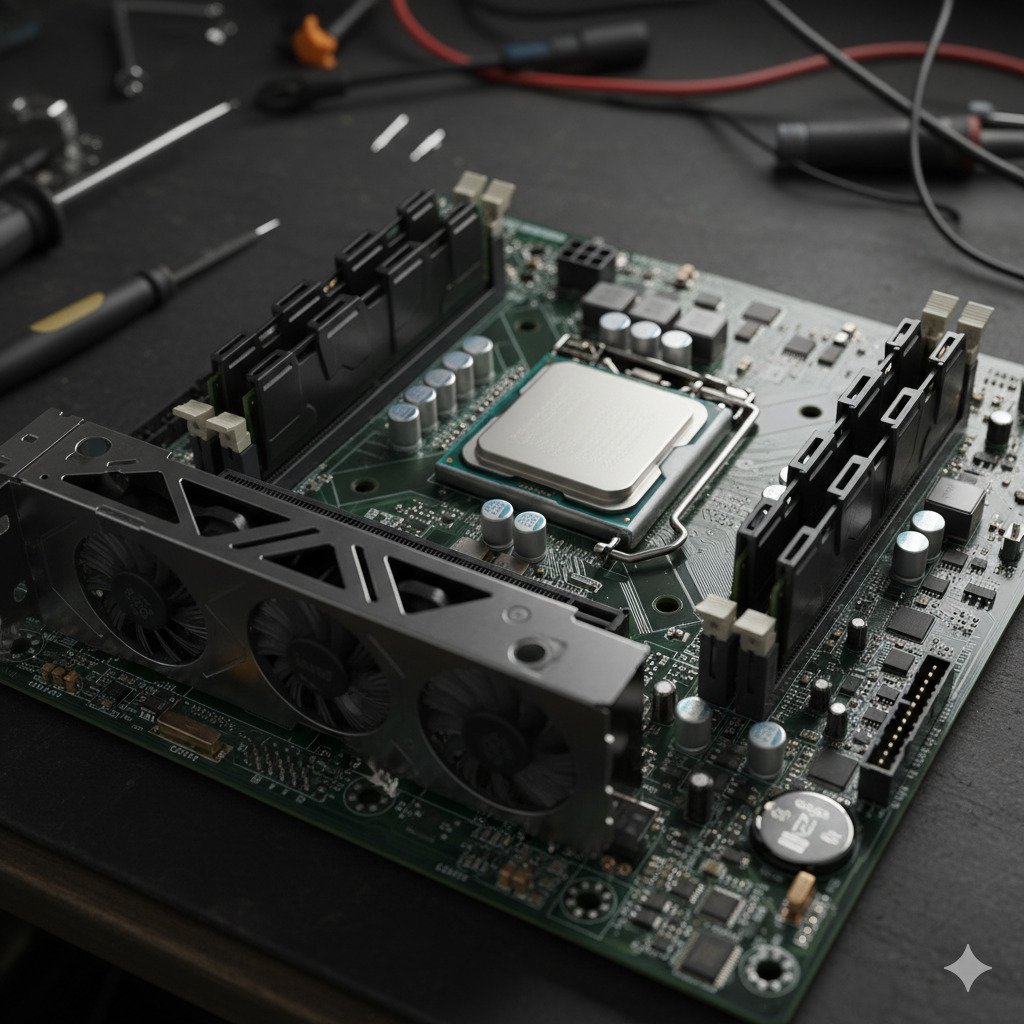
What does the CPU do?
The CPU has two main jobs that it does over and over again, incredibly fast:
- Following Instructions: Every time you click a button or press a key, you are sending an instruction. The CPU reads that instruction and figures out what needs to happen next.
- Doing Math: Believe it or not, almost everything a computer does—from showing a video to playing a sound—is actually just a lot of very complicated math. The CPU is a master at math. It can do billions of calculations in a single second!
Speed and Cores: How Fast Can It Go?
When people talk about how “fast” a computer is, they are usually talking about the CPU. We measure this speed in Gigahertz (GHz).
- If a CPU has a speed of 3.0 GHz, it means it can think about 3 billion things every second!
The Power of “Cores”
Sometimes, one brain isn’t enough. Modern CPUs have something called Cores. You can think of cores like having extra pairs of hands.
- A Single-Core CPU is like a chef working alone in a kitchen. They can only do one thing at a time.
- A Multi-Core CPU (like a “Quad-Core”) is like having four chefs in the same kitchen! They can work together to get a big meal (like a heavy video game) ready much faster.
Keeping it Cool
Because the CPU works so hard and thinks so fast, it gets very, very hot. If you’ve ever felt a laptop get warm on your lap, you’re feeling the CPU working!
To keep it from melting or breaking, every CPU needs a way to stay cool. This is why you will usually see a big Heat Sink (a piece of metal that pulls heat away) and a Fan sitting right on top of it. The fan blows the hot air away so the CPU can keep thinking without getting a “fever.”
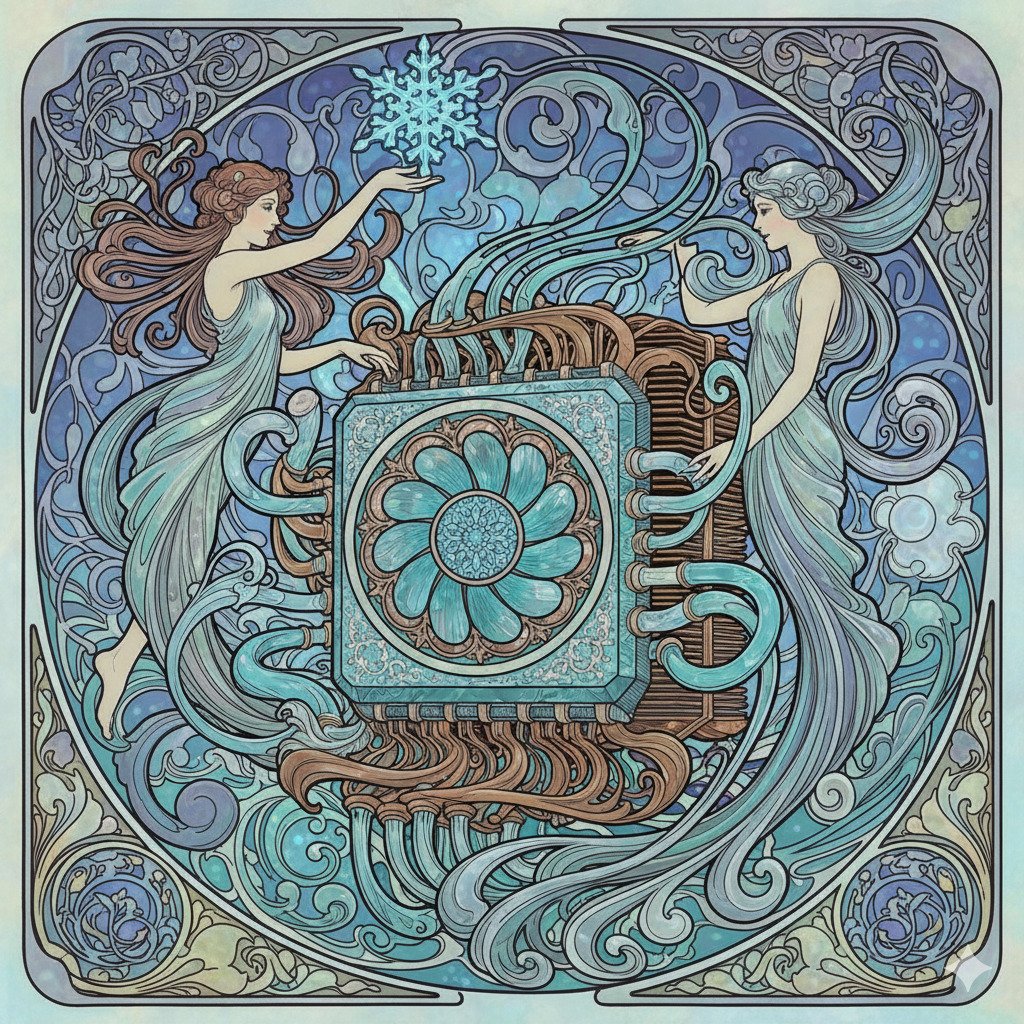
Did you know?
- CPUs are made from sand! The main ingredient in a computer chip is silicon, which is refined from ordinary sand. So, in a way, your computer’s brain is just very, very smart sand!
- The first CPU was as powerful as a calculator. The Intel 4004, released in 1971, was the first single-chip CPU. It could only do about 92,000 calculations per second. Modern CPUs can do over 100 billion!
- The prefix “Giga” means “Giant”. When we say 3 Gigahertz, “Giga” comes from the Greek word for giant. It means the CPU is doing a “giant” number of calculations every single second.
Check Your Knowledge
1. You are playing a game and also listening to music at the same time. Which feature of a CPU helps the computer do both tasks easily?
- A) The Heat Sink
- B) Having multiple Cores
- C) The size of the CPU
2. If a CPU is running at 4.0 GHz, what is it doing 4 billion times a second?
3. Why would a computer suddenly turn off if its internal fan stopped working?
4. Imagine you are building a computer specifically for very “heavy” work, like editing a movie. Would you prefer a CPU with 2 cores or 8 cores? Why?
Memory and Storage
Have you ever wondered how your computer remembers your favorite game, or how it knows what you were working on just a moment ago? Computers have two main ways of remembering things: Memory and Storage.
To understand them, let’s think about how you work at a desk.
1. Short-Term vs. Long-Term Memory

Imagine you are sitting at your desk doing your homework.
- The Desk (RAM): The space on top of your desk is like the computer’s Memory (also called RAM). You keep the books and papers you are using right now on the desk so you can reach them quickly.
- The Bookshelf (Storage): Your bookshelf is like the computer’s Storage (like a Hard Drive). This is where you keep all your books when you aren’t using them. It has a lot more space than your desk, but it takes a little longer to go and find a book and bring it to your desk.
2. RAM: The Working Memory
RAM stands for “Random Access Memory.” It is the computer’s “Short-Term Memory.”
When you open a game or a program, the computer “picks it up” from the storage (the bookshelf) and puts it into the RAM (the desk).
- It’s super fast: The CPU can get information from the RAM almost instantly.
- It’s forgetful: RAM only works when the computer is turned on. If you turn off your computer without saving your work, the RAM “forgets” everything! This is why we say RAM is volatile.
3. Hard Drives and SSDs: The Storage

Storage is where your photos, games, and files live for a long time. This is the computer’s “Long-Term Memory.”
There are two main types of storage:
- HDD (Hard Disk Drive): These have a spinning disk inside, a bit like an old record player. They can hold a huge amount of stuff, but they are a bit slower because they have moving parts.
- SSD (Solid State Drive): These use special chips with no moving parts. They are much faster than HDDs, but they are usually more expensive. Most modern laptops use SSDs because they make the computer start up very quickly!
Unlike RAM, storage is non-volatile. This means it remembers everything even when the power is turned off.
4. Bits and Bytes
How do we measure how much a computer can remember? We use Bits and Bytes!
What is a Bit?
Imagine a single “Bit” is like a tiny light switch. It can only be in one of two states: ON or OFF.
- In the computer world, we use numbers for this: 1 for ON and 0 for OFF.
- Everything you see on a computer—pictures, music, and games—is actually made up of millions of these tiny 1s and 0s!
What is a Byte?
Since one bit can’t tell us much, computers group them together.
- 8 Bits = 1 Byte.
- One Byte is about enough space to store a single letter of the alphabet, like “A” or “b”. If you write the word “Hello”, it takes up 5 Bytes!
Measuring Storage
Since modern computers can store so much information, we use bigger words to describe how many bytes they can hold:
- Kilobyte (KB): About 1,000 bytes. This is like a very short story or a small email.
- Megabyte (MB): About 1 million bytes. A high-quality photo or one minute of a song is usually a few Megabytes.
- Gigabyte (GB): About 1 billion bytes. A high-definition movie or a large game like Minecraft might be several Gigabytes.
- Terabyte (TB): About 1 trillion bytes. This is massive! One Terabyte can hold about 250,000 photos or 500 hours of video. Most new computers have 1 or 2 Terabytes of storage.
Did you know?
- The first hard drive was the size of two refrigerators. It was made by IBM in 1956 and could only hold 5 Megabytes of data—not even enough for two modern high-quality songs!
- A “Bit” is short for “Binary Digit”. Scientists combined the words to make it easier to say. Everything in the computer world is built from these tiny building blocks.
- Voyager 1 has very little memory. The spacecraft that has traveled the furthest from Earth has only about 68 Kilobytes of memory. That’s thousands of times less than a single photo on your smartphone!
Check Your Knowledge
- You are writing a story and the power suddenly goes out before you click “Save.” Which part of the computer “forgot” your story: the RAM or the Hard Drive? Why?
- If you want your computer to start up and load games as fast as possible, would you choose an HDD or an SSD?
- Which is bigger: 500 Megabytes (MB) or 2 Gigabytes (GB)?
- Why can’t we just use a Hard Drive for everything and skip having RAM? (Hint: Think about the desk and the bookshelf!)
Input Devices: Giving Orders
In this section, we will look at how we talk to the computer.
Imagine you have a robot friend. How would you tell it to go left or right? How would you tell it your name? You would need a way to send your commands into the robot’s brain. For a computer, we use Input Devices.
What is an Input Device?
An Input Device is any piece of hardware that sends information into the computer.
Think of it like your own senses. Your eyes take in light (input), your ears take in sound (input), and your skin feels touch (input). A computer doesn’t have eyes or ears of its own, so it uses input devices to “see” and “hear” what you want it to do.
Without input devices, a computer would be like a television that you couldn’t control—it might show something, but you couldn’t tell it to change the channel or play a game!
The Keyboard and Mouse
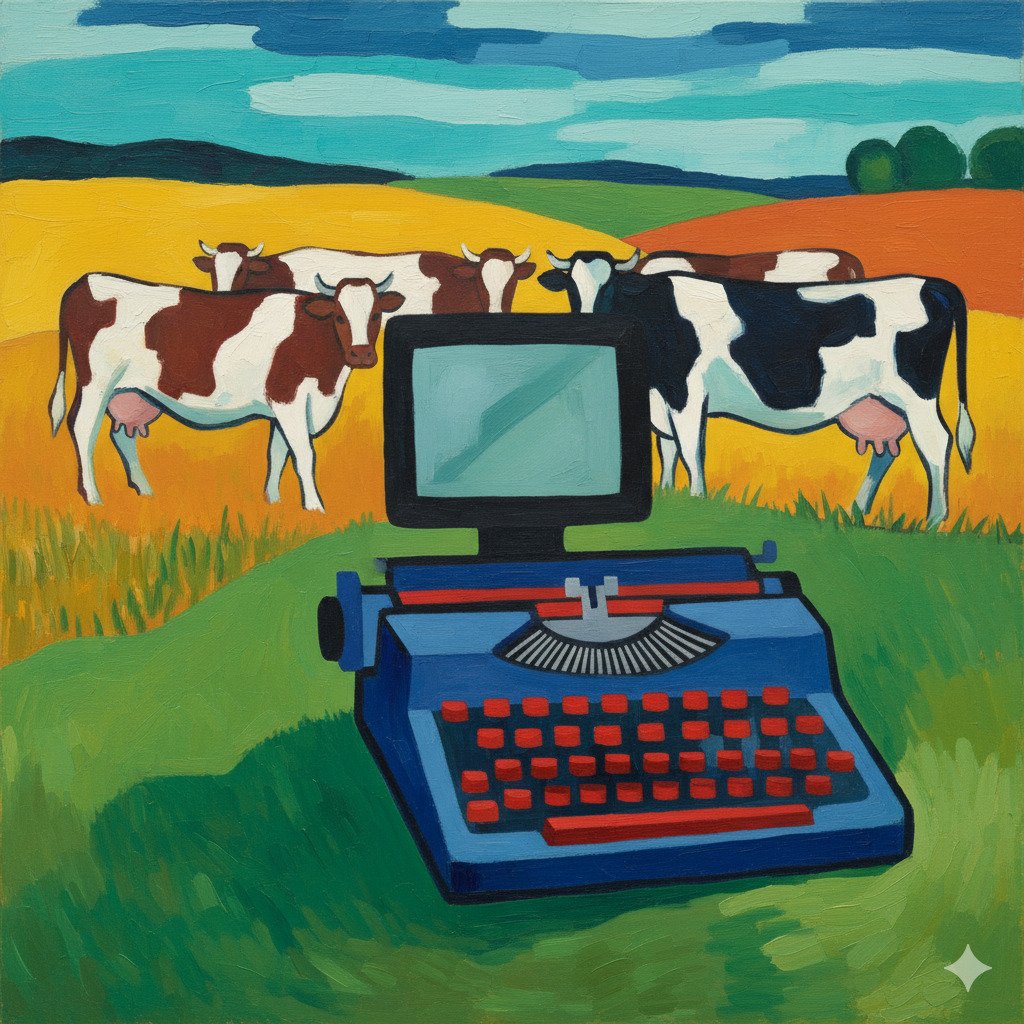
The two most common input devices are the keyboard and the mouse.
- Keyboard: This is used for typing. Every time you press a key, you are sending a signal to the computer telling it which letter, number, or symbol you want it to record.
- Mouse: This is used to point and click. When you move the mouse on your desk, the little arrow (the cursor) moves on the screen. Clicking a button tells the computer, “I want to do something with this!”
Touchscreens: When the Screen is also an Input!
On a tablet or a smartphone, you don’t usually have a separate keyboard or mouse. Instead, you touch the screen directly. In this case, the screen is doing two jobs at once: it’s showing you a picture (output), but it’s also acting as an input device because it “feels” your fingers!
Sound and Vision
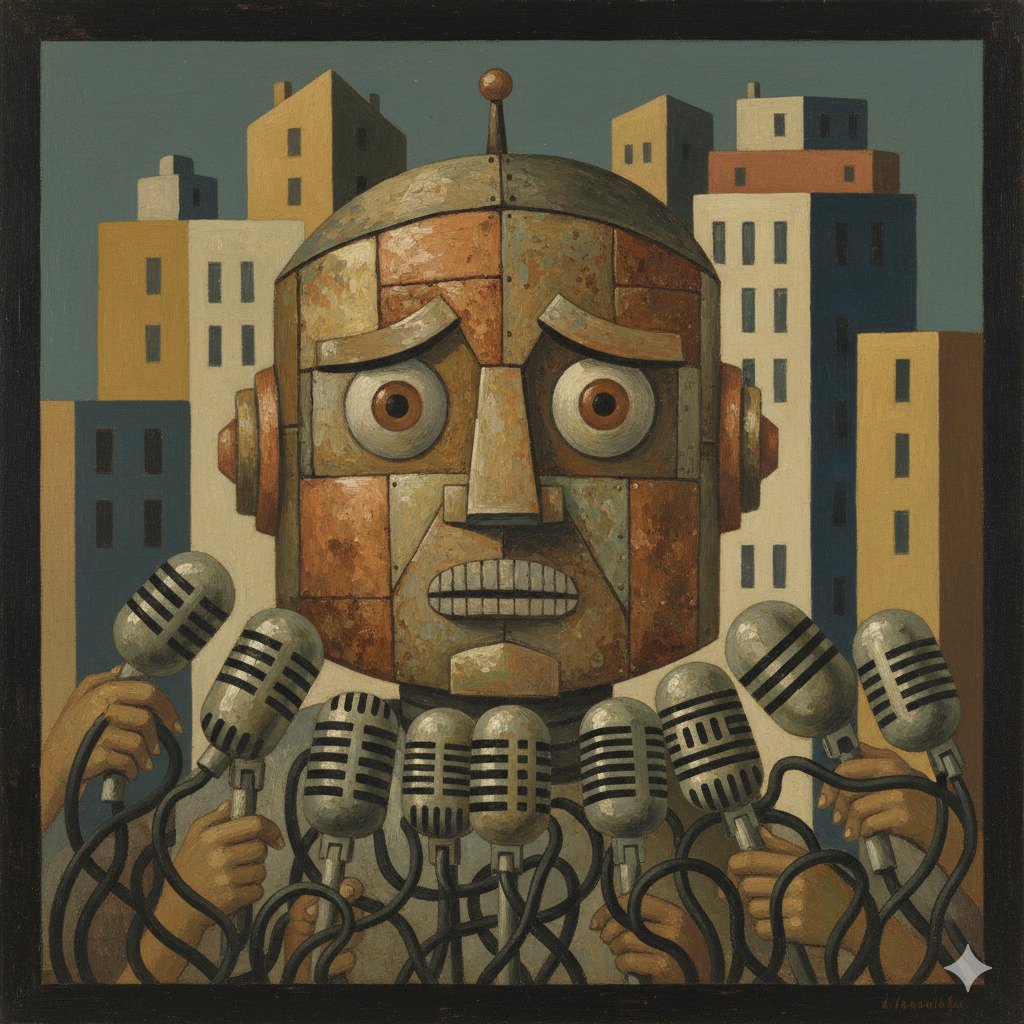
Computers can also take in more than just clicks and letters. They can see and hear too!
- Microphones: These capture your voice. When you talk to a friend online or record a song, the microphone turns the sound of your voice into digital information the computer can understand.
- Webcams: These are small cameras that let the computer “see” you. They are used for video calls or taking photos.
- Scanners: Have you ever made a beautiful drawing on paper and wanted to put it on the computer? A scanner “reads” the paper and sends a digital copy into the computer.
Game Controllers and Others
If you love playing video games, you probably use other types of input devices!
- Joysticks and Gamepads: These are built specifically for games. They have buttons, triggers, and sticks that let you move characters and perform actions much faster than a keyboard could.
- Graphic Tablets: Artists use these. They use a special pen (called a stylus) to draw on a flat pad, and the drawing appears on the computer screen. It’s much more natural for drawing than using a mouse!
Did you know?
- The first mouse was made of wood! In 1964, Doug Engelbart invented the first computer mouse, and it was a simple wooden box with two metal wheels and one button.
- QWERTY is over 150 years old! The layout of letters on your keyboard (starting with Q-W-E-R-T-Y) was designed for old-fashioned typewriters in the 1870s to keep the mechanical arms from getting stuck!
- Your eyes are like high-tech inputs. If your eyes were digital cameras, scientists estimate they would have about 576 megapixels. Most webcams only have about 2 or 3!
Check Your Knowledge
1. Which of these is the best definition of an Input Device?
- A) A device that shows you what the computer is thinking.
- B) A device that sends information into the computer.
- C) A device that makes the computer run faster.
2. If you are playing a game and you move your character by tilting your tablet, what is acting as the input?
- A) The speakers
- B) The battery
- C) A motion sensor inside the tablet
3. Imagine you are an artist who wants to paint a digital picture. Why might you choose a Graphic Tablet instead of a Mouse?
4. True or False: A touchscreen is both an input device and an output device.
Output Devices: Seeing and Hearing
In this section, we will see how the computer talks back to us.
Imagine you’ve just asked your robot friend a question. “What is 2 + 2?” The robot thinks for a second, but if it doesn’t have a way to tell you the answer, its hard work is wasted! For a computer to be useful, it needs a way to show or tell us the results of its work. We call these Output Devices.
What is an Output Device?
An Output Device is any piece of hardware that sends information out of the computer.
If input devices are like your senses (eyes and ears), output devices are like your voice or your hands. They are the ways you communicate with the world. A computer uses output devices to show you pictures, play sounds, or even print things out so you can hold them.
Without output devices, you could type on a keyboard all day, but you would never know if the computer was actually doing anything!
The Monitor (Screen)
The monitor is the most important output device for most people. It’s how you see your work, play games, and watch videos.
Pixels: The Tiny Dots
If you look really, really closely at a screen (don’t do it for too long!), you might see that the picture is actually made of millions of tiny, glowing dots. These dots are called pixels.
Each pixel can change color. When they all work together, they create the beautiful images you see. The more pixels a screen has, the clearer and sharper the picture will be!
Printers
Sometimes you want to take something from the screen and put it into the real world. That’s what a printer is for!
- Inkjet and Laser Printers: These put text and pictures on paper. You might use them for school reports or printing out a photo.
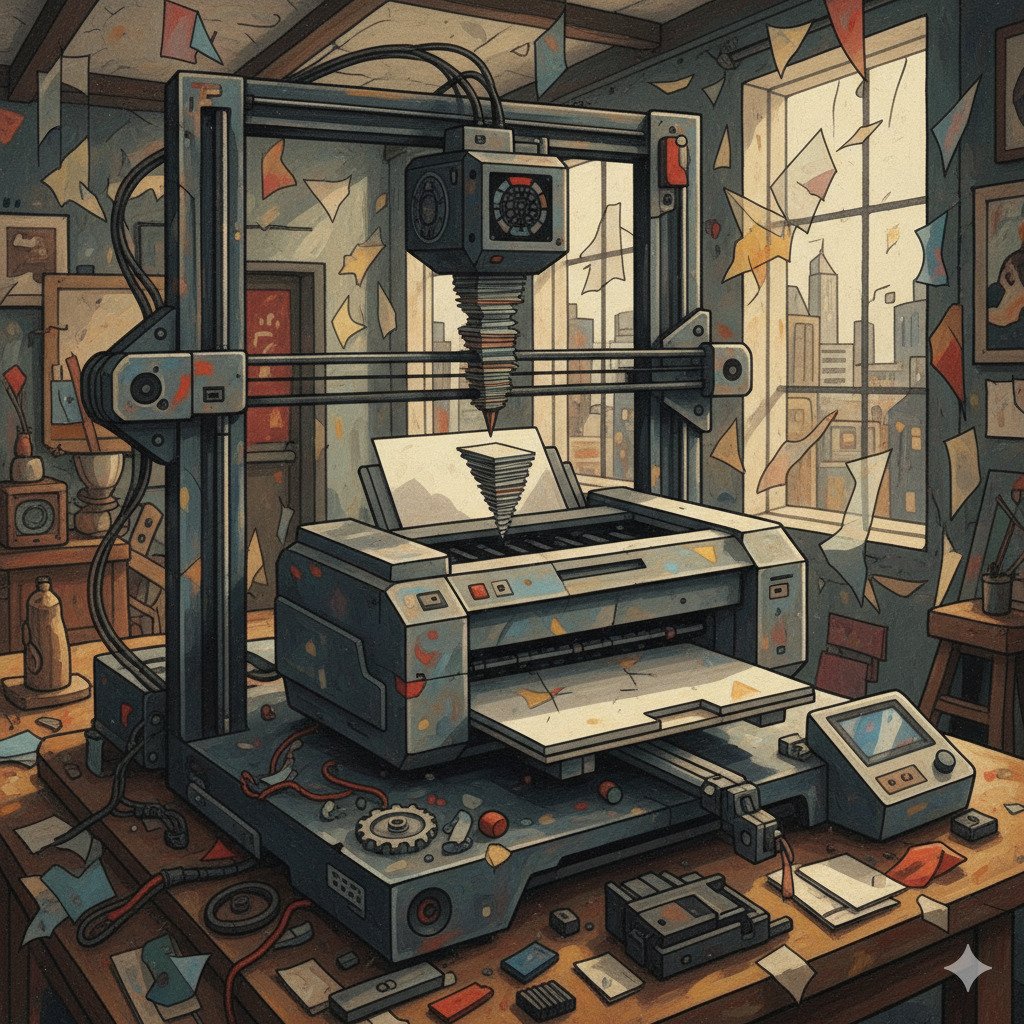
- 3D Printers: These are very cool! Instead of printing flat ink on paper, they “print” layers of plastic or other materials on top of each other to build a real, 3D object. You could print a toy, a tool, or even a part for a spaceship!
Speakers and Headphones
Computers aren’t just about seeing; they’re also about hearing.
- Speakers: These allow everyone in the room to hear music, voices, or game sounds.
- Headphones: These are like tiny speakers you wear on your ears. They let you listen to your computer without disturbing anyone else.
Both of these devices take digital information from the computer and turn it into sound waves that your ears can understand.
Vibration and Lights
Not all output is something you see or hear. Sometimes you can feel it!
- Vibration: Many game controllers have small motors inside that make them shake or rumble. If your character in a game gets hit, the controller vibrates to let you know.
- LED Lights: Look at your computer or your keyboard. You might see tiny lights that blink to tell you if the battery is low, or if the “Caps Lock” is on. These are simple but very useful output devices.
Did you know?
- The first computer screens were round! Early computers used screens that looked more like radar dishes than the flat rectangles we use today.
- 3D printers can print houses. Some giant 3D printers use concrete instead of plastic and can “print” the walls of a small house in just one day.
- Pixels are made of three colors. Most pixels on your screen are actually made of three tiny lights: Red, Green, and Blue (RGB). By mixing these three colors, the computer can make almost any color you can imagine!
Check Your Knowledge
1. Which of these is an example of an Output Device?
- A) A Microphone
- B) A Printer
- C) A Mouse
2. What are “Pixels”?
- A) Tiny motors that make a controller shake.
- B) The tiny dots of light that make up the picture on a screen.
- C) The buttons on a keyboard.
3. If you wanted to share a song you wrote on your computer with everyone in the room, which output device would you use?
4. True or False: A 3D printer is an output device because it takes digital information and turns it into a physical object.
Connecting it All (Motherboard and Power)
In this section, we will see how all the parts are connected and how they get electricity. Imagine if you had a brain, a stomach, and muscles, but no way to connect them or give them energy! That’s why the motherboard and the power supply are so important.
1. The Motherboard: The Big Connector
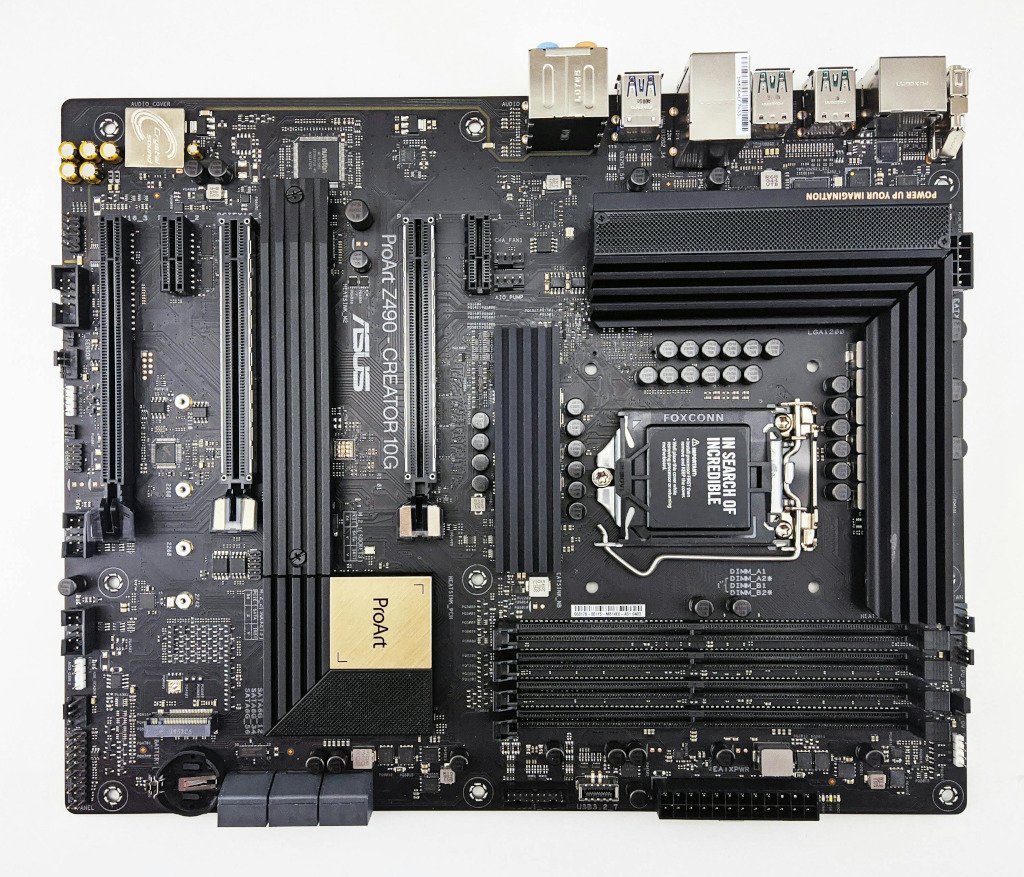
The Motherboard is the largest circuit board inside the computer. It looks like a big, flat green or black city map with tiny “roads” (called traces) running all over it.
You can think of the motherboard like the nervous system of the computer. It provides a place for every other part to “plug in” and talk to each other.
- The CPU has a special socket right in the middle.
- The RAM has long slots to click into.
- The Storage (SSD or Hard Drive) connects with cables or small slots.
Without the motherboard, the CPU wouldn’t be able to tell the Hard Drive to save your game, and the RAM wouldn’t be able to send information to the screen!
2. The Power Supply Unit (PSU)
Computers run on electricity, but they can’t just plug directly into a wall outlet like a lamp. The electricity from your house is too “strong” and is the wrong kind for the delicate parts of a computer.
The Power Supply Unit (PSU) is a metal box that acts like a translator. It takes the electricity from your wall and turns it into the exact amount of “juice” each part needs.
- Cables: The PSU has many different wires or cables coming out of it. Each cable has a special plug that goes into the motherboard, the hard drive, or the graphics card to give them the power they need to work.
3. Ports and Plugs
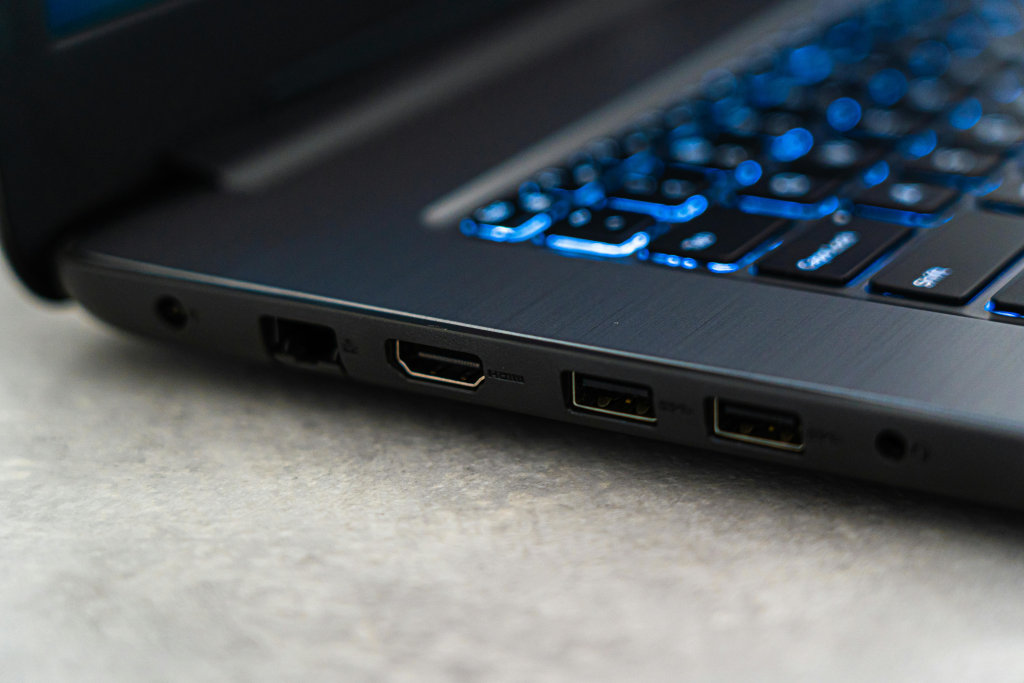
If you look at the back or side of a computer, you will see many different holes and connectors. These are called Ports.
- USB Ports: These are the most common. You use them to plug in mice, keyboards, and printers.
- HDMI Port: This is where you plug in the cable that goes to your monitor or TV so you can see the picture.
- Power Port: This is where the main power cord from the wall plugs into the computer’s PSU.
Every plug is designed to fit only into the right spot. It’s like a puzzle—if it doesn’t fit easily, don’t force it!
4. The Case
The Case (sometimes called the “tower”) is the “house” that keeps all the parts safe and organized.
The case does three important things:
- Protection: It keeps dust, pets, and spilled drinks away from the sensitive parts.
- Organization: It has special screws and brackets to hold the motherboard and power supply firmly in place.
- Cooling: It helps air flow through the computer so the parts don’t get too hot.
Did you know?
- The Motherboard has a “Battery”: There is a tiny silver battery on the motherboard (it looks like a coin). It’s there to keep the computer’s internal clock running even when you unplug the computer from the wall!
- Gold is inside your computer: Because gold is very good at carrying electricity and doesn’t rust, many of the tiny connectors on the motherboard and CPU are plated with real gold.
- Power Supplies have their own fans: The PSU works so hard translating electricity that it gets hot too, so it almost always has its own fan built right into the metal box.
Check Your Knowledge
1. Which part of the computer acts like a “city map” or “nervous system” to connect all the other parts?
- A) The Power Supply
- B) The Motherboard
- C) The Case
2. Why can’t we just plug the CPU directly into the wall outlet?
3. You are trying to plug a USB mouse into your computer, but it won’t go in. What should you do?
- A) Push as hard as you can until it clicks.
- B) Check if it is upside down or if you are using the wrong port.
- C) Use a hammer to make it fit.
4. Name two things the computer Case does to help the computer.
Graphics and Sound Cards
In this lesson, we will learn about how your computer shows you amazing pictures and plays your favorite music!
The Graphics Card
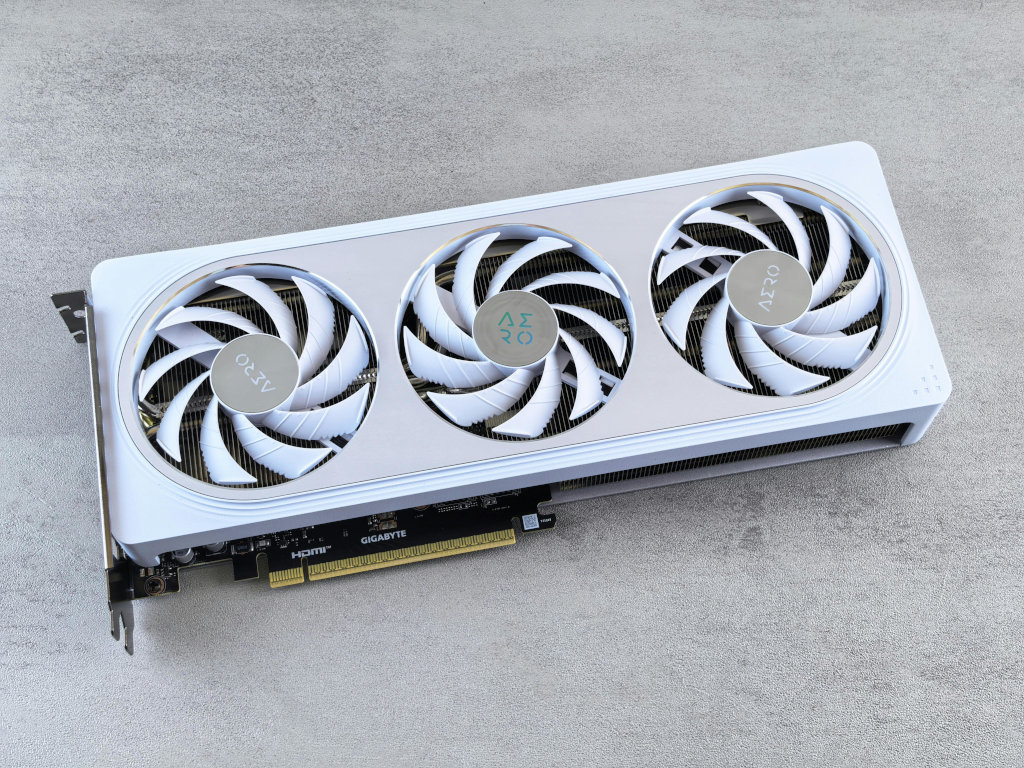
The Graphics Card (also called a Video Card) is the part of the computer that handles everything you see on your screen. It takes information from the CPU and turns it into images, videos, and games.
- The GPU: The “brain” of the graphics card is called the GPU (Graphics Processing Unit). While a CPU is good at many different tasks, the GPU is a specialist. It is designed to do thousands of tiny math problems all at once to decide what color every single pixel on your screen should be!
- Video RAM (VRAM): Graphics cards have their own special memory called VRAM. This is where the card stores the information for the pictures it is currently drawing, so it doesn’t have to keep asking the main RAM for help.
- Expansion Cards: For most basic computers, the graphics parts are built into the motherboard. But for gaming or making movies, people plug in a large, powerful graphics card into a special slot on the motherboard.
Performance: Smooth and Clear
Have you ever noticed how some games look super sharp while others look blurry? Or how some videos play smoothly while others “stutter”? This is often because of the graphics card!
- Resolution: This is about how many pixels are on the screen. A powerful graphics card can handle higher resolutions (like 4K), making the picture look incredibly detailed.
- Framerate: Think of a video as a fast flip-book of still pictures. Each picture is a “frame.” A good graphics card can “flip” these pictures 60 times a second or even more! This makes movements look smooth and lifelike.
Cooling the Powerhouse
Because graphics cards do so much math so fast, they get very hot! If you look at a large graphics card, you’ll see it has its own fans and metal parts (called heat sinks) just to keep it cool. It’s like having a second, mini-computer inside your case that needs its own cooling system.
The Sound Card
The Sound Card is what allows your computer to make noise. It sends sound to your speakers or headphones and can also record sound from a microphone.
- Digital to Analog: Computers think in numbers (digital), but speakers need electrical waves (analog) to make sound. The sound card acts like a translator, turning the computer’s numbers into sounds we can hear.
- 3D Audio: Some sound cards are so smart they can make it sound like a dragon is roaring behind you or a car is zooming past your left ear! This is called “Surround Sound” or “3D Audio,” and it helps make games and movies feel more real.
- Built-in Sound: Nowadays, most computers have the sound parts built right into the motherboard. However, musicians and sound engineers often use high-quality external sound cards to get the best possible audio.
Why do we need them?
Without these parts, your computer wouldn’t be very fun! You wouldn’t be able to watch movies, play games with cool graphics, or listen to your favorite songs. They take the “heavy lifting” away from the CPU so the computer can run smoothly even when doing lots of things at once.
Did you know?
- Supercomputers: Some of the world’s fastest supercomputers use thousands of GPUs working together because they are so good at doing lots of math at the same time!
- Old Computers: In the early days of computers, they didn’t have sound cards. They just had a tiny “beeper” that could only make simple “beeps” and “boops.”
- Movie Magic: Modern movies use hundreds of graphics cards to create the special effects and monsters you see on the big screen!
Check Your Knowledge
- How is a GPU different from a CPU?
- What is VRAM used for?
- If a game is “stuttering” and not moving smoothly, is it more likely a problem with the Resolution or the Framerate?
- Why do powerful graphics cards need their own fans?
- Why does a sound card need to act like a “translator”?
- How can “3D Audio” make a game feel more real?
- Why might a professional musician buy a separate sound card if most computers already have sound built-in?
External Devices (Peripherals)
We’ve talked about what’s inside the computer case, but what about the things we plug in? These are called peripherals.
What is a Peripheral?
A peripheral is any device that connects to the computer but is not part of the main computer box. They help us give the computer more “skills.”
Imagine a computer is like a person. The computer case is the body and brain. Peripherals are like tools that person can pick up and use. If you want to draw, you pick up a pencil. If you want to see something far away, you use binoculars. Peripherals work the same way for computers!
Types of Peripherals
We can group peripherals into three main categories based on what they do:
1. Input Peripherals (Giving Instructions)
These devices send information into the computer.
- Webcams: These act like the computer’s “eyes,” letting it see you for video calls.
- Microphones: These are the computer’s “ears,” used for recording your voice or talking to friends online.
- Game Controllers: Joysticks and gamepads let you tell the computer exactly how to move your character in a game.

2. Output Peripherals (Showing Results)
These devices take information from the computer and show it to you.
- Printers: These take digital images and text and turn them into physical copies on paper.
- Speakers and Headphones: These turn digital data into sound that you can hear.
- Projectors: These are like giant monitors that can shine the computer’s screen onto a wall, great for watching movies with friends!
3. Storage Peripherals (Remembering More)
These help the computer keep more information than what fits inside it.
- External Hard Drives: These are like portable bookshelves. You can save thousands of photos or games on them and take them to a friend’s house.
- USB Flash Drives: Often called “thumb drives,” these are tiny and can fit on a keychain, but they can still hold a lot of schoolwork and files.
How do they connect?
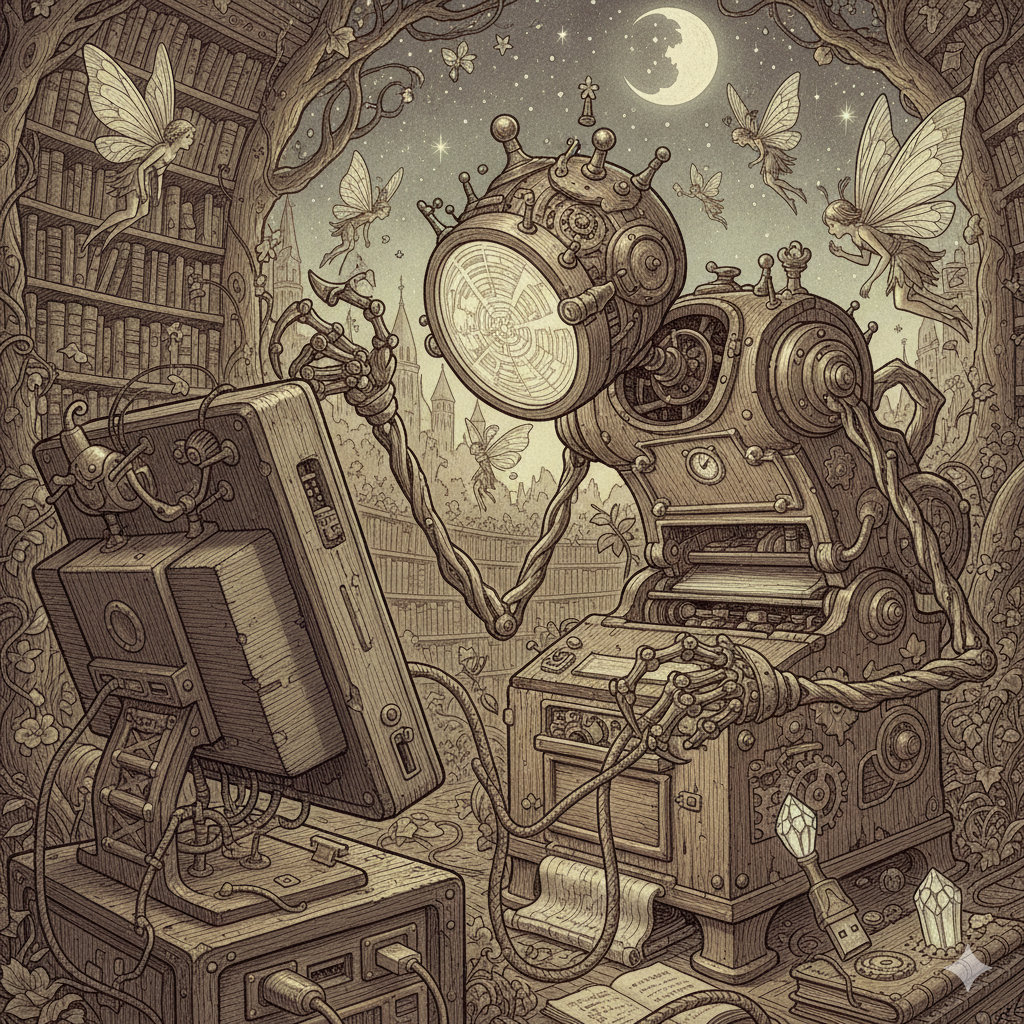
Most peripherals today connect using a USB port. USB stands for Universal Serial Bus, and it’s like a universal plug that works for almost everything!
Wireless Connections
Not all peripherals need a cable! Many modern devices use Bluetooth. This is a way for devices to talk to each other through the air using invisible radio waves.
- Wireless Mice and Keyboards: These keep your desk tidy because there are no wires in the way.
- Bluetooth Headphones: These let you listen to music while moving around the room without being tethered to the computer.
Did you know?
- USB plugs were inspired by Poseidon’s trident! The USB symbol looks like a three-pronged spear, which is the symbol of the ancient Greek god of the sea.
- The first computer mouse was made of wood! In 1963, Douglas Engelbart built the very first mouse. It was a wooden box with two metal wheels and only one button.
- A “dongle” is a funny-sounding name for a real thing. A dongle is a small peripheral that plugs into a port to add a specific feature, like Wi-Fi or Bluetooth, to a computer that doesn’t have it.
Check Your Knowledge
- What is another name for “external devices” that we plug into a computer?
- If you wanted to show a movie on a big wall for a party, which peripheral would you use?
- What is the name of the invisible technology that lets a wireless mouse talk to a computer?
- Why might someone use an external hard drive instead of just saving everything on their computer?
Caring for your Hardware
Computers are expensive and fragile. It’s important to know how to take care of them so they last a long time! Just like a pet or a bicycle, your computer needs a little bit of love and attention to stay happy and fast.
Keep it Cool
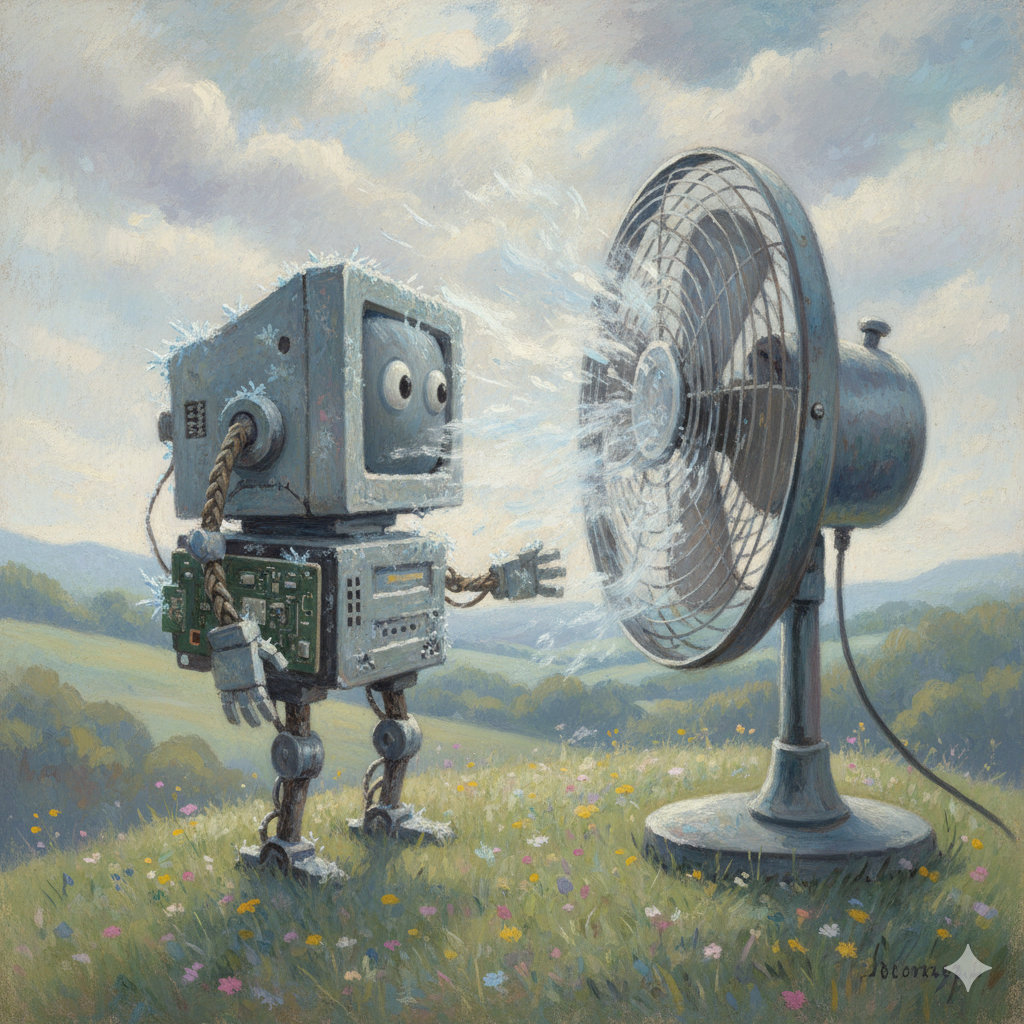
Computers get very hot when they work. Inside the case, the CPU and GPU are doing millions of calculations every second, and that generates heat. If a computer gets too hot, it might slow down or even shut off to protect itself.
- Vents and Airflow: Make sure the vents (the little holes or slits in the case) aren’t blocked. Never use a laptop on a soft surface like a bed, a thick blanket, or a pillow, as these can block the air from getting in. Instead, use it on a desk or a hard, flat board.
- Avoid the Sun: Don’t leave your computer or tablet in a hot car or in direct sunlight for a long time. The sun can heat up the screen and the battery very quickly!
- Give it Space: If you have a desktop computer, don’t squish it into a tight cabinet where the hot air has nowhere to go.
Keep it Clean
Dust and dirt are some of your computer’s biggest enemies. They can clog up fans and make things sticky.
- No Food or Drinks: A single spill can ruin a keyboard or even the whole computer. Crumbs can also get stuck under the keys, making them hard to press. Always keep your snacks and drinks on a different table.
- Sticky Hands: Always wash your hands before using your computer. Sticky or greasy fingers can leave marks on the screen and make the keys gross.
- Proper Cleaning:
- The Screen: Use a soft, dry “microfiber” cloth (like the ones used for glasses) to gently wipe the screen. Never use window cleaner or harsh chemicals!
- The Keyboard: If you see dust, you can use a can of “compressed air” to blow it out from between the keys.
Handle with Care
The parts inside a computer are very tiny and can break if they are shaken or bumped too hard.
- Gentle Fingers: Don’t bang on the keys or click the mouse too hard. They are designed to work with a light touch.
- Plugs and Cables: When you want to unplug something, like a charger or a USB drive, always pull from the plastic “plug” part, never the wire itself. Wiggling the plug side-to-side too much can also damage the port.
- The Screen is Fragile: Never touch a laptop screen with your fingers (unless it’s a touchscreen!), and never pick up a laptop by its screen. It can crack or “bleed” colors if squeezed.
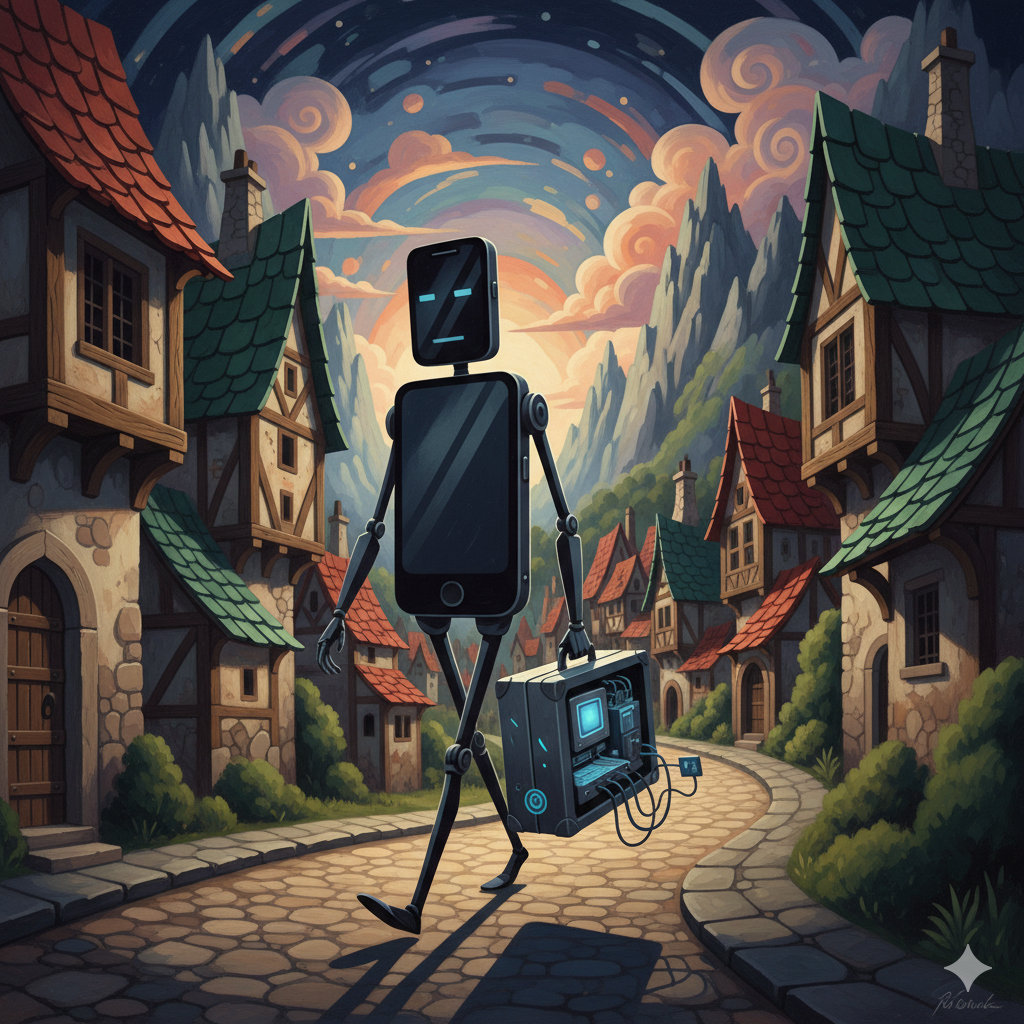
- Two-Hand Rule: Always carry laptops and tablets with both hands. It’s much harder to drop them that way!
Safe Shutdowns
When you are finished using your computer, it’s important to turn it off correctly.
- Don’t Just Pull the Plug: Always use the “Shut Down” or “Power Off” button in your computer’s menu. This gives the computer time to “clean up” its files and save everything properly.
- Let it Finish: If you see a message saying “Updating, do not turn off your computer,” wait for it to finish! If you turn it off during an update, it might have trouble starting up next time.
Traveling with Tech
If you are taking your computer to a friend’s house or on a trip, it needs extra protection.
- Use a Case: Always put tablets and laptops in a padded sleeve or a backpack with a special laptop pocket.
- Check for “Passengers”: Before you close a laptop, make sure there isn’t a pencil, an eraser, or an earbud sitting on the keyboard. If you close the lid on something, the screen will likely crack!
Did you know?
- Dust is the computer’s number one enemy! Over time, dust can build up inside the computer case and act like a warm blanket. This stops the heat from escaping and can make the parts “cook” themselves.
- Static electricity can zap a computer. Have you ever touched a doorknob and felt a tiny “zap”? That’s static electricity. It’s harmless to you, but it can be strong enough to break the tiny circuits inside a computer if you touch them directly!
- Magnets can be dangerous: Some older types of computer storage (like Hard Drives) use magnetism to remember files. If you put a strong magnet near them, it could “erase” your data! Even though modern SSDs are safer, it’s still a good habit to keep magnets away from your gadgets.
Check Your Knowledge
- Why is it better to use a laptop on a desk than on a fluffy pillow?
- What is the “Two-Hand Rule,” and why is it important?
- Why should you always use the “Shut Down” button instead of just pulling the power cord?
- You are about to close your laptop. What should you check for first?
- Why are magnets potentially dangerous to some computers?
Unit 2: Software
In this unit, we will learn about the invisible part of the computer—the instructions that tell the hardware what to do!
What is Software?
If hardware is the “body” of the computer, then software is the “mind.”
The Invisible Instructions
Software is a set of instructions that tell the computer hardware exactly what to do. You can’t touch software because it is just information stored inside the computer’s memory. Imagine you have a LEGO set. The bricks themselves are like hardware. The instruction booklet that tells you how to build a castle is like software. Without the instructions, you just have a pile of plastic!
Hardware vs. Software
Think of a music player:
- The Hardware is the device itself, the buttons, and the screen.
- The Software is the app that plays the music and the music files themselves.
Without software, a computer would just be a box of metal and plastic that doesn’t know how to do anything!
Different Jobs for Different Software
Just like people have different jobs (like a chef, a teacher, or a pilot), different software has different jobs too:
- To create things: Like a program for drawing pictures or writing stories.
- To explore: Like a web browser for looking at things on the internet.
- To entertain: Like your favorite video games.
- To manage: The “boss” software that runs the whole computer is called the Operating System.
How do we get Software?
Software is created by people called Programmers. They write code, which is a special language that computers understand. When you buy a game or download an app, you are getting a copy of the code that the programmers wrote.
Sometimes, software needs to be updated. An Update is like giving the computer a new, better set of instructions to fix mistakes or add cool new features.
Did you know?
- The first programmer: The first person to write software instructions was a woman named Ada Lovelace in the 1840s—long before modern computers even existed!
- Software is everywhere: It’s not just in computers and phones. Software runs your microwave, the engine in your car, and even some smart lightbulbs!
- Bugs in the system: When software doesn’t work right, we call it a “bug.” The name comes from a time when a real moth got stuck inside an early computer and caused it to stop working!
Check Your Knowledge
- Can you touch software? Why or why not?
- If you are playing a video game on a console, which part is the software?
- What is the name of the special language that programmers use to talk to computers?
- Why is an “Update” important for software?
- True or False: Software is only found in computers and tablets.
How Computers Talk (Digital Data)
Have you ever wondered how a computer remembers your favorite picture or the high score in your game? It doesn’t use words or colors like we do. Instead, computers use something much simpler: Numbers!
The Language of On and Off
Inside a computer, everything is made of billions of tiny electronic switches called transistors. These switches are like the light switches in your house, but much, much smaller. They can only be in two states:
- ON (Represented by the number 1)
- OFF (Represented by the number 0)
Because there are only two choices (0 or 1), we call this system Binary. The word “bi” means two, just like a bicycle has two wheels!
Bits and Bytes
- Bit: A single 1 or 0 is called a “bit.” It is the smallest piece of information a computer can understand.
- Byte: When you put 8 bits together in a row, it’s called a “byte.”
Think of it like LEGO bricks. One tiny bit is like a single stud. When you snap 8 of them together, you have a bigger brick (a byte) that can start to represent something useful.
Example:
- 1 bit: Can tell you if a light is ON or OFF.
- 1 byte: Can represent a single letter, like ‘A’ or ‘B’.
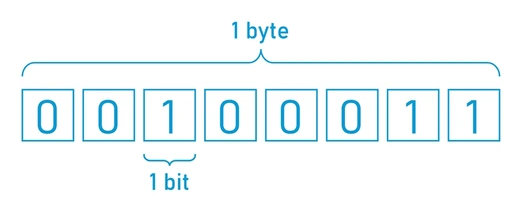
Everything is a Number
Even though computers only see 1s and 0s, they can combine them to represent everything else:
- Letters: There is a special “codebook” (like ASCII or Unicode) that tells the computer which byte represents which letter. For example, the code
01000001is the letter A. - Colors: Computers create colors by mixing Red, Green, and Blue light. Each color gets its own number. A bright red might be
255in decimal, which looks like11111111in binary! - Pictures: A photo is just thousands of tiny dots called pixels. Each pixel has its own binary code that tells the computer exactly what color it should be.
Letter Codes (a-z)
Here is how a computer sees the lowercase letters of the alphabet:
| Letter | Decimal | Binary |
|---|---|---|
| a | 97 | 01100001 |
| b | 98 | 01100010 |
| c | 99 | 01100011 |
| d | 100 | 01100100 |
| e | 101 | 01100101 |
| f | 102 | 01100110 |
| g | 103 | 01100111 |
| h | 104 | 01101000 |
| i | 105 | 01101001 |
| j | 106 | 01101010 |
| k | 107 | 01101011 |
| l | 108 | 01101100 |
| m | 109 | 01101101 |
| n | 110 | 01101110 |
| o | 111 | 01101111 |
| p | 112 | 01110000 |
| q | 113 | 01110001 |
| r | 114 | 01110010 |
| s | 115 | 01110011 |
| t | 116 | 01110100 |
| u | 117 | 01110101 |
| v | 118 | 01110110 |
| w | 119 | 01110111 |
| x | 120 | 01111000 |
| y | 121 | 01111001 |
| z | 122 | 01111010 |
Counting Like a Computer
We usually count using ten digits (0, 1, 2, 3, 4, 5, 6, 7, 8, 9). This is called Decimal. But since computers only have two “fingers” (0 and 1), they count differently.
Imagine you have three light bulbs.
- If all are off (
000), that’s 0. - If the first one is on (
001), that’s 1. - If the second one is on (
010), that’s 2. - If the first and second are on (
011), that’s 3.
By using enough bits, a computer can count as high as it needs to!
Did you know?
- The first “Bit”: The word “bit” stands for Binary Digit. It was first used by a scientist named Claude Shannon in 1948.
- Binary is Old: Even though computers are modern, the idea of binary was developed by a mathematician named Gottfried Wilhelm Leibniz way back in 1689!
- Punch Cards: Long ago, before screens and keyboards, people “talked” to computers by punching holes in paper cards. A hole meant “1” and no hole meant “0”.
Check Your Knowledge
- Why do computers use Binary (0s and 1s) instead of human words?
- If you have 8 bits, what is that group called?
- What is a “pixel,” and how does a computer know what color it should be?
- How many different patterns can you make with just 2 bits? (Try writing them down!)
Operating Systems: The Big Boss
The most important piece of software on any computer is the Operating System, or OS. Without an OS, your computer would just be a pile of metal and plastic that doesn’t know how to do anything!
What does the OS do?
The Operating System is like the manager of a big factory. It makes sure all the hardware and other software programs work together correctly.
Think of it as the “middleman.” When you want to do something, you tell the OS, and the OS tells the hardware.
1. Managing Hardware (The “Police Officer”)
The OS controls who gets to use the hardware. For example:
- The Printer: If two programs try to print at the same time, the OS puts them in a line so they don’t get mixed up.
- Memory (RAM): The OS decides which programs get space in the computer’s memory.
- The CPU: It makes sure every program gets a fair turn using the “brain” of the computer.
2. The User Interface (The “Face” of the Computer)
The User Interface (UI) is how you talk to the computer. Most computers today use a Graphical User Interface (GUI), which uses icons, buttons, and menus you can click on with a mouse or tap with your finger.
Before GUIs were invented, people had to type text commands into a black screen! This is called a Command Line Interface (CLI). Some experts still use it today because it can be very fast.
3. File Management (The “Librarian”)
The OS is like a librarian for your files. It organizes everything into folders and keeps track of where they are stored on your hard drive or SSD. When you search for a file, the OS is the one that finds it for you.
Famous Operating Systems
You have probably used one of these:
- Windows: Created by Microsoft. It’s used on most laptops and desktop computers around the world.
- macOS: Created by Apple. This is the OS that runs on MacBook and iMac computers.
- Linux: A special “open source” system that is free for anyone to use and change. It’s used to run many of the world’s most powerful servers and even some cars!
- Android and iOS: These are “mobile” operating systems. Android is used on many different phones, while iOS is only for Apple iPhones.
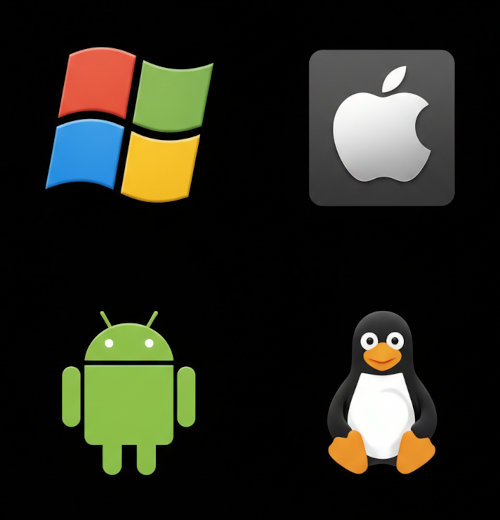
These are the logos of the operating systems mentioned above.
Did You Know?
- The First OS: In the very early days of computers, there were no operating systems! People had to manually flip switches and plug in cables to tell the computer what to do for every single job.
- Linux is Everywhere: Even if you don’t have a Linux computer at home, you probably use Linux every day! It runs most of the internet, smart TVs, and even the “Perseverance” rover on Mars!
- Windows’ Name: Microsoft Windows got its name because the software was designed to show different programs in rectangular “windows” on the screen.
Check Your Knowledge
- Why is the Operating System called the “middleman” between you and the hardware?
- What is the difference between a GUI and a CLI?
- If you are running three games at once, which part of the OS makes sure they all get a turn to use the CPU?
- Why did early computers take so much longer to set up than modern ones?
- Name a mobile operating system and a desktop operating system.
Different Types of Software
Apart from the Operating System, most software we use is called Application Software, or “Apps” for short. While the Operating System (System Software) works behind the scenes to keep the computer running, Apps are what we use to actually do things!
What are Apps?
Apps are programs designed to help you do a specific task. There are millions of apps out there, and they usually fall into a few main categories:
1. Productivity Software
These are tools that help you get work done.
- Word Processors: Used for writing letters, school reports, or even books! (Example: Microsoft Word, Google Docs).
- Spreadsheets: Great for organizing numbers, making schedules, or doing math. (Example: Microsoft Excel, Google Sheets).
- Presentation Tools: Used to make “slides” for a talk or project. (Example: PowerPoint).
2. Creative Software
These apps let you express your artistic side.
- Graphic Design: For drawing, painting, or editing photos. (Example: Adobe Photoshop, MS Paint).
- Video Editing: For cutting together clips to make a movie or a YouTube video.
- Music Software: For recording songs or making electronic beats.
3. Communication Software
These apps help us stay in touch with people all over the world.
- Email: For sending electronic letters.
- Instant Messaging: For quick chats with friends (Example: WhatsApp, Discord).
- Video Calling: For seeing and talking to people in real-time (Example: Zoom, FaceTime).
4. Entertainment Software
This is one of the most popular types of software!
- Video Games: From simple puzzle games on a phone to huge 3D worlds on a console.
- Streaming Services: Apps for watching movies or listening to music (Example: Netflix, Spotify).
5. Utility Software
Utilities are like a “toolbox” for your computer. They help keep it healthy and organized.
- Antivirus: Protects your computer from “bugs” or “viruses” that could make it sick.
- File Managers: Help you organize your folders and find your files.
- Compression Tools: These “squish” large files to make them smaller so they take up less space.
6. Web Browsers
A web browser is a special app that lets you visit websites on the internet. You will learn more about these in a later chapter! (Example: Google Chrome, Safari, Firefox).
System Software vs. Application Software
It’s helpful to remember the difference:
- System Software (like the OS) runs the computer itself and manages the hardware.
- Application Software (Apps) helps you do specific tasks, like playing a game or writing a story.
Did you know?
- The first “App Store” wasn’t on a phone! It was launched for computers in the 1980s, but it didn’t become super popular until the iPhone arrived in 2008.
- Video games are some of the most complex software ever written. Some games have millions of lines of code!
- The World Wide Web was invented by Tim Berners-Lee in 1989. He also wrote the very first web browser to look at it.
Questions
- What is the difference between System Software and Application Software?
- If you wanted to “squish” a large file to save space, what type of utility would you use?
- Name two examples of Productivity Software and what they are used for.
- Is a web browser an Operating System? Why or why not?
- Which type of software would you use to edit a photo of your pet?
Using Software: Getting Started
To use software, you need to know more than just how to start it. You also need to know how to get new programs, keep them updated, and make sure you don’t lose your work!
1. Launching a Program
To start a program, you usually click on an icon. An icon is a small picture that represents the program. Once you click it, the Operating System loads the software into the RAM (Random Access Memory) so it can run.
Think of the RAM like your desk while you are doing homework. You take your books (the software) out of your backpack (the hard drive) and put them on the desk so you can use them.
2. Saving Your Work: “Save” vs. “Save As”
When you are working, your data is only in the RAM. If the computer turns off, you will lose it! To keep it forever, you must Save it to the hard drive, SSD, or even the Cloud (which is just a computer somewhere else on the internet).
- Save: This updates the file you are already working on with your new changes.
- Save As: This creates a new copy of the file with a different name or in a different folder. This is useful if you want to keep an old version of your work and start a new one.
3. Files and Folders: Staying Organized
Imagine if all the papers you ever wrote for school were just thrown into one giant pile in your room. It would take forever to find your history report from last month! Computers work the same way—they use Files and Folders to keep everything tidy.
What is a File?
A File is a single piece of information. Everything on a computer—every song, every photo, and every game—is made of files.
Think of a file like a single piece of paper. It could be:
- A Document: Like a story you wrote in a word processor.
- An Image: Like a photo of your pet or a drawing you made.
- A Video: Like a movie clip or a recording of your favorite game.
Each file has a File Name and often a File Extension. For example, MyStory.docx tells the computer that the name is “MyStory” and the .docx part at the end tells it that this is a document that needs to be opened with a word processor.
What is a Folder?
A Folder is like a virtual box or a drawer where you can put files that belong together. You can even put folders inside other folders (these are called “subfolders”).
For example, you might have a folder called Schoolwork, and inside that, you have more folders for Math, Science, and Art. This makes it easy to find exactly what you need.
4. Installing and Uninstalling
Before you can use a program, it usually needs to be Installed. This means the computer copies all the files the program needs from the internet or a disk onto your hard drive and sets it up so the OS knows how to run it.
If you don’t want a program anymore, you should Uninstall it. Don’t just delete the icon! Uninstalling makes sure all the hidden files the program used are removed, which clears up space on your computer.
5. Keeping Software Happy: Updates
Software isn’t perfect. Sometimes it has “bugs” (mistakes in the code). Developers send out Updates to fix these bugs or to add cool new features. It is important to install these updates to keep your computer safe and running smoothly.
Did you know?
- The First Software Sold: In the early days of computers, software wasn’t sold separately. It was just a part of the hardware! The first company to sell software as its own product was founded in 1955.
- Cloud Computing: The “Cloud” isn’t actually in the sky! It is just thousands of powerful computers sitting in big buildings called “Data Centers” all over the world.
- Save Icon: Have you ever seen the “Save” icon that looks like a little square? That is actually a Floppy Disk. People used them to save files before we had USB sticks or the internet!
Check Your Knowledge
- You are writing a story called “My Adventure.” You want to make a second version where the main character is a dragon instead of a knight, but you want to keep the original story too. Which command should you use: Save or Save As? Why?
- Your computer is running very slowly because the hard drive is almost full of games you don’t play anymore. What is the best way to remove them?
- Why is the RAM compared to a “desk” while you are working?
- You see a message that your favorite drawing app has an “Update” available. Should you ignore it? Why or why not?
- If you have a file named
VacationPhoto.jpg, what part of that name is the “File Extension,” and why is it useful for the computer to know?
Web Browsers: Your Window to the Web
A Web Browser is a special type of software that lets you look at websites on the internet. Without a browser, you wouldn’t be able to see this page!
What does a Browser do?
The internet is like a giant library of files, but those files are written in a language that only computers can understand, called HTML. The browser “reads” these files and translates them into the text, pictures, and videos that you see on your screen.
Imagine you’re building a LEGO set. The HTML file is like the instruction manual, and the browser is like you, the builder, putting all the bricks together so the final model looks just right.

Common Web Browsers
You might have used one of these browsers already:
- Google Chrome: One of the most popular browsers in the world.
- Safari: The default browser on Apple devices like iPhones, iPads, and MacBooks.
- Microsoft Edge: The browser that comes with Windows computers.
- Mozilla Firefox: A browser known for being fast and private.
Parts of a Browser
To use a browser like a pro, you need to know how its parts work:
- Address Bar: This is the long box at the top of the window. You type the website’s address (like
www.wikipedia.org) here to go to a specific page. - Tabs: These let you have many websites open at the same time in one window. You can switch between them by clicking on the labels at the top.
- Refresh Button: This button (usually a circular arrow) tells the browser to reload the page. This is helpful if a website stops working or if you want to see the latest news on a site.
- Bookmarks/Favorites: If you find a website you really like, you can “bookmark” it. This saves the address so you can find it again quickly without typing it in.
- History: The browser keeps a list of all the websites you’ve visited recently. This is great if you forgot the name of a cool site you saw yesterday!
How a Website’s Address Works (URLs)
Every website has a unique address called a URL (Uniform Resource Locator). Let’s look at one: https://www.google.com
- https:// – This is a special code that tells the browser how to talk to the website safely.
- www – This stands for “World Wide Web.”
- google.com – This is the name of the website (the “Domain Name”).
Staying Safe Online
When you’re surfing the web, it’s important to be a smart digital citizen:
- Ask for Permission: Always ask an adult before visiting a new website.
- Look for the Padlock: Most browsers show a small padlock icon next to the URL. This means the website is secure and safe to use.
- Don’t Share Personal Info: Never type your real name, address, or phone number into a website without asking a parent or teacher first.
Did You Know?
- The First Browser: The very first web browser was called WorldWideWeb (later renamed Nexus) and was invented by Sir Tim Berners-Lee in 1890. It didn’t have any pictures—just text!
- Browser Wars: In the late 1990s, there was a “war” between two browsers, Netscape Navigator and Internet Explorer. They both tried to add new features as fast as possible to win over more users.
- The Browser Icon: Have you ever noticed that many browser icons are circles? This is because the “World Wide Web” covers the entire globe, like a giant circle!
Check Your Knowledge
- What is the “language” that browsers read to build a website on your screen?
- What is the difference between a Tab and a Bookmark?
- You are looking at a website, but the pictures aren’t loading properly. Which browser button should you click first?
- Why is it important to see a Padlock icon in the address bar when you are on a website?
- What does URL stand for, and what is it used for?
Word Processing: Writing Stories
A Word Processor is software used for creating documents that are mostly text. You can use it to write a letter, a story, or a school report.
What can you do?
In a word processor, you don’t just type words. You can make your writing look professional and fun!
1. Change the Look (Formatting)
You can change how your text looks to make it stand out:
- Font: Change the style of the letters. Some look formal, while others look like handwriting!
- Size: Make your title big and your story text smaller.
- Color: Use different colors for your headings.
- Bold, Italic, and Underline: Use Bold for important words, Italics for book titles, and Underline for headings.
2. Organize your Page (Alignment)
You can decide where the text sits on the page:
- Left Align: The lines of text all line up on the left side (this is how we usually write).
- Center: The text is right in the middle (great for titles!).
- Right Align: The lines of text all line up on the right side.

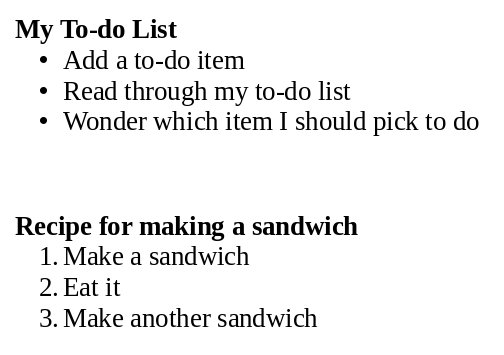
3. Add Lists
If you are writing a shopping list or steps for a recipe, you can use:
- Bulleted Lists: Like the ones you see here!
- Numbered Lists: 1, 2, 3… to show the order of things.
4. Pictures and Spelling
- Add Pictures: Put photos or drawings into your document to help tell your story.
- Check Spelling: The software helps you find words you spelled wrong by putting a red squiggly line under them.
Examples of Word Processors
- Microsoft Word: The most famous one, used by many people at work and school.
- Google Docs: A free one that works inside your web browser! You can even work on the same document with a friend at the same time.
- LibreOffice Writer: A free word processor for Linux and Windows.
- Pages: A beautiful word processor for Mac and iPad.
Did you know?
- Before computers, people used Typewriters. If you made a mistake, you had to use special white paint (called “Wite-Out”) or start the whole page all over again!
- The first word processors weren’t software on a computer; they were huge, heavy machines that could only do one thing: type and edit text.
- The “Copy and Paste” feature was invented by a man named Larry Tesler. He wanted to make it easier for people to move text around without retyping it.
Questions
- If you wanted to write a book report, what kind of software would you use?
- You are writing a title for your story. Which alignment would make it look best in the middle of the page?
- What is the feature called that helps you if you spell a word incorrectly, and what does it usually look like on the screen?
- Why would you use a Numbered List instead of a Bulleted List?
- Name one word processor that you can use for free on the internet.
Spreadsheets: Organizing Numbers
Have you ever seen a big table full of numbers and wondered how people keep track of them all? That’s where spreadsheets come in!
A spreadsheet is a piece of software that helps you organize information in rows and columns. It’s like a giant piece of digital graph paper that can also do math for you.
Rows, Columns, and Cells
The layout of a spreadsheet is very organized:
- Columns go up and down and are always named with letters (A, B, C…).
- Rows go across from left to right and are always named with numbers (1, 2, 3…).
- A Cell is the little box where a row and a column meet.
We give each cell a “name” based on its column letter and row number, like A1 or C5. Think of it like a secret code or a map to find where a piece of information is hidden!

Why use Spreadsheets?
Spreadsheets are amazing because they can do math for you instantly! If you have a list of prices for your birthday party, you can tell the spreadsheet to add them all up. If you change the price of the cake, the spreadsheet automatically recalculates the total without you having to do anything!
People use spreadsheets for:
- Budgets: Keeping track of pocket money or how much a party costs.
- Schedules: Making a school timetable or a sports practice schedule.
- Inventories: Listing all your favorite toys or books.
- Charts: Turning boring lists of numbers into colorful pictures.
Formatting: Making it Look Good!
Just like a word processor, you can change how your spreadsheet looks. You can:
- Make text Bold or change its color to make headers stand out.
- Fill Cells with Color to group different types of information together.
- Add Borders to make the grid lines easier to see.
- Change Column Width if your words are too long to fit in the box!
Formulas: The Magic of Spreadsheets
To make a spreadsheet do math, you use something called a formula. A formula always starts with an equals sign (=).
For example, if you want to add the numbers in cell A1 and A2, you would type:
=A1+A2
Spreadsheets also have built-in “super-powers” called Functions. Instead of adding every single cell one-by-one, you can use =SUM(A1:A10) to add everything from cell A1 all the way down to A10 in one go!
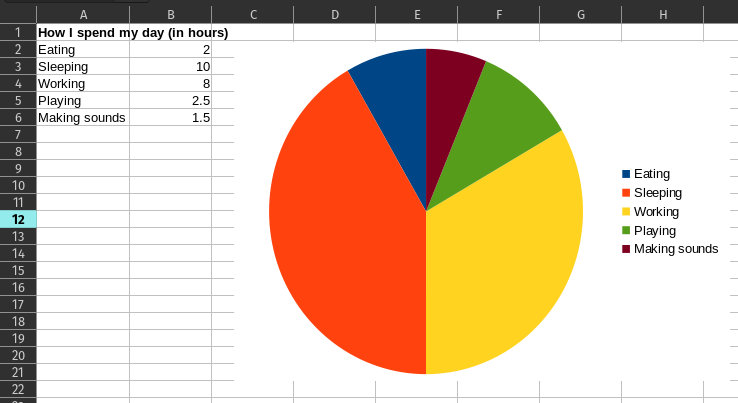
Amazing Charts
Sometimes, looking at a long list of numbers is boring. Spreadsheets can take those numbers and turn them into Charts and Graphs.
- Pie Charts show how a whole thing is split into parts (like how you spend your day).
- Bar Charts are great for comparing different things (like which fruit is the most popular in your class).
Did you know?
- The First Spreadsheet: The very first spreadsheet program was called VisiCalc, and it was invented in 1979. Before that, people had to do all these calculations by hand on big sheets of paper!
- Huge Tables: A single spreadsheet can have over 1,000,000 rows! That’s a lot of space for information.
- Auto-Fill: If you type “Monday” in one cell and “Tuesday” in the next, most spreadsheets can automatically fill in the rest of the week for you if you click and drag the corner of the cell!
Questions
- What do we call the little box where a row and a column meet?
- If you are looking at the third column (C) and the fifth row (5), what is the name of that cell?
- What symbol must every formula start with in a spreadsheet?
- Why is it better to use a spreadsheet for a budget instead of just writing it on paper?
- What is the difference between a Bar Chart and a Pie Chart?
- If you have a list of 50 numbers to add up, what is the name of the function you could use to do it quickly?
Mobile Apps: Software on the Go
Think about how you use a smartphone or tablet compared to a laptop or a desktop computer. You don’t usually sit at a desk with a mouse and keyboard, do you? Instead, you hold it in your hands, carry it in your pocket, and use your fingers to interact with it. The special software designed for these portable devices is called an App (short for “Application”).
Built for Touch
Mobile apps are designed for touchscreens. This means they have big, easy-to-tap buttons and use special finger movements called gestures:
- Tap: Like a mouse click.
- Swipe: Sliding your finger to scroll through photos or pages.
- Pinch-to-Zoom: Using two fingers to make a map or a photo look bigger or smaller.
The Two Big Families: iOS and Android
Just like desktop computers have different operating systems like Windows or macOS, mobile devices have them too! The two most famous ones are iOS and Android.
- iOS (by Apple): This is the operating system for iPhones and iPads. It’s known for being very simple and easy to use. Apple makes both the software (iOS) and the hardware (the iPhone), so they work together perfectly.
- Android (by Google): This operating system is used by many different companies like Samsung, Google (Pixel), and Motorola. Because so many different companies use it, Android comes in many different styles and on many different types of phones!
The App Store vs. Google Play
Because most mobile devices don’t have a disc drive or a way to plug in a CD, we get new software from a digital shop.
- On Apple devices, it’s called the App Store.
- On Android devices, it’s called Google Play. You just search for the app you want, tap “Install,” and it appears on your screen!
Sensors: Making Apps “Smart”
One of the coolest things about mobile apps is that they can use the “senses” of your phone, which we call sensors:
- GPS: Tells the app exactly where you are on Earth. This is how map apps know where you’re standing.
- Camera: Not just for selfies! Apps use the camera to scan QR codes or even “see” objects to tell you what they are.
- Accelerometer: This sensor knows if you are holding your phone upright or sideways. If you turn your phone to watch a video, the app knows to rotate the picture!
- Gyroscope: This helps the phone understand how it’s being tilted or rotated in 3D space. It’s used in games where you tilt the phone to steer a car.
Practical Examples
Mobile apps are everywhere! Here are a few ways they help us:
- Education: Apps like Duolingo help you learn a new language by playing games.
- Communication: Apps like WhatsApp or FaceTime let you talk to friends and family across the world.
- Entertainment: Games like Minecraft let you build and explore new worlds right in your hands.
- Health: Some apps can count how many steps you walk in a day using the phone’s sensors.
Did you know?
- The First App Store: While we use them every day now, the Apple App Store only opened in 2008! Before then, it was much harder to get new programs onto your phone.
- Most Popular: The most downloaded apps of all time are usually social media apps like Facebook and Instagram, but games like Candy Crush have been downloaded billions of times!
- Space Apps: Even astronauts use mobile apps! They have special tablets on the International Space Station to help them keep track of their experiments and schedules.
Questions
-
Imagine you are designing a racing game for a phone. How could you use the accelerometer to make the game more fun than just tapping buttons?
-
Why do mobile apps have larger buttons and simpler menus than programs on a desktop computer?
-
If you are in a forest with no Wi-Fi or internet, can a map app still show your exact location? Which sensor would it use?
-
You want to learn how to play the piano. How could a mobile app use the microphone sensor to help you?
-
If you have an iPhone, can you download an app from Google Play? Why or why not?
Staying Safe with Software
Software is helpful, but some software can be dangerous. Just like you wouldn’t eat a piece of candy you found on the street, you should be careful about the software you put on your computer!
Software Updates
Sometimes software has “bugs” (mistakes) that can let bad people look at your files or break your computer. Companies release Updates to fix these bugs. You should always update your software when it asks! It’s like patching a hole in a fence.
Malware and Viruses
Malware is “malicious software.” These are programs designed to steal information or break your computer. A Virus is a type of malware that can spread from one computer to another, like a real-life cold.
App Permissions: Saying “Yes” or “No”
When you install a new app, it might ask for permissions. This is the app asking for your permission to use things like your camera, your location, or your photos.
- Ask yourself: Does a calculator app really need to know where I am? Probably not!
- Be careful: Only say “Yes” if the app really needs it to work. If you’re not sure, ask an adult.
Beware of the “Tricky” Buttons
Some websites use “fake” buttons that look like part of a game or a download link. They might say “DOWNLOAD NOW!” in big, bright letters, but they actually download malware!
- Look closely: Official download buttons usually look more professional and are located near the information about the software.
- Avoid the pop-ups: If a window pops up saying you’ve “won a prize” or that your computer has “1,000 viruses,” it’s usually a trick. Don’t click it!
How to Stay Safe
- Only download from trusted places: Use official app stores (like Google Play or Apple App Store) or the official website of the company.
- Antivirus Software: Use a program that scans for and deletes malware. It’s like having a security guard for your computer.
- Ask an Adult: If a weird message pops up or you’re not sure about an app, always ask a parent or teacher before you click anything!
Did you know?
- The First Bug: The term “bug” for a computer mistake comes from a real moth that got stuck inside an early computer in 1947!
- The Creeper: The first computer virus, called “Creeper,” was created in 1971. It didn’t break anything; it just showed a message: “I’m the creeper, catch me if you can!”
Questions
- You are installing a new drawing app, and it asks for permission to use your GPS location. Should you say “Yes”? Why or why not?
- Why is it a bad idea to click a big, flashing “YOU HAVE WON A NEW PHONE!” button on a website?
- What is the difference between a normal software “bug” and “malware”?
- If your computer tells you that a “System Update” is ready, what is the best thing to do?
Unit 3: The Internet and the Web
In this unit, we will explore the amazing world of the internet. We’ll find out how computers talk to each other across the globe, how search engines help us find things, and how to stay safe while we’re online!
What is the internet?
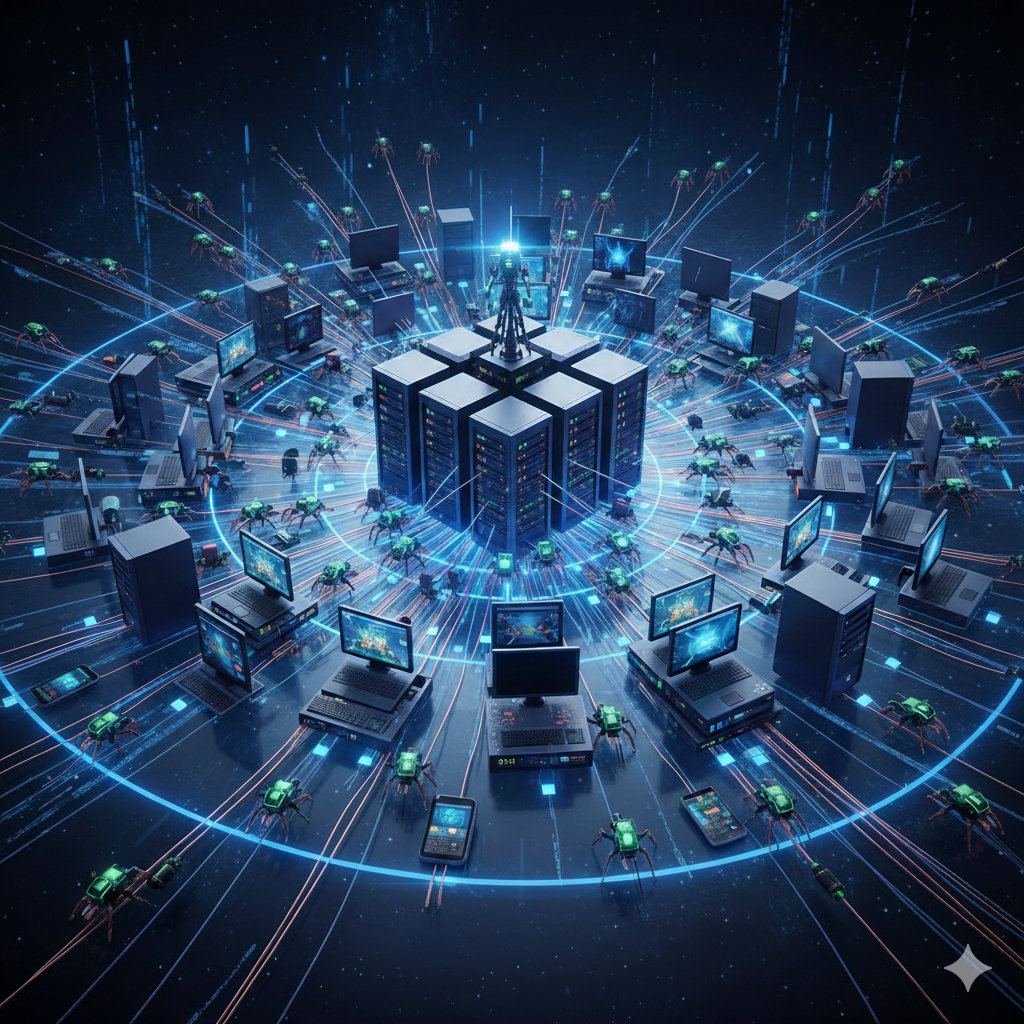
The internet is a massive, worldwide network of computers that are all connected to each other. It’s like a giant conversation that never ends! Every time you look at a website, play an online game, or send a message, you are using this huge network.
A Network of Networks
Imagine you and your friends all have walkie-talkies. You can talk to each other, right? That’s a small network. Now, imagine if your walkie-talkie could also talk to your cousin’s walkie-talkie in another city, and your cousin could talk to their friends too. Eventually, everyone in the whole world would be connected. That’s exactly what the internet is—a “network of networks.”
It’s like a giant web of invisible strings connecting every computer, tablet, and smartphone on the planet.
The Gatekeepers: Your ISP
To get onto the internet, you usually need a “ticket” from a company called an Internet Service Provider, or ISP.
Think of the internet like a huge, international highway system. To get your car onto the highway, you might need to go through a toll booth. Your ISP is like that toll booth. They provide the connection that lets your computer talk to all the other computers on the “internet highway.”
Common ISPs are companies that provide your home’s internet or your phone’s data plan.
How do we use the Internet?
We use the internet for all sorts of things every day:
- Learning: Like reading this lesson or looking up facts for a school project.
- Watching Videos: Streaming movies or educational videos on sites like YouTube.
- Talking to People: Sending messages, emails, or video calling your family.
- Shopping: Buying devices or clothes from online stores without leaving the house.
The Web vs. The Internet
A lot of people think the “Internet” and the “World Wide Web” (the Web) are the same thing, but they aren’t!
- The Internet is the hardware—the cables, wires, and computers that are all hooked up.
- The Web is the software—the websites and pages we see when we use a browser.
Think of it like a library: the building, the shelves, and the librarians are the internet, and the books on the shelves are the web. You can use the internet for other things besides the web, like sending an email or playing a game through an app!
Did you know?
- No one person owns the internet: It’s a huge team effort! Different companies and governments own different parts of it, but no one single person is the “boss” of the whole thing.
- Under the Sea: Most of the internet’s data doesn’t travel through space using satellites; it actually travels through giant cables laid at the bottom of the ocean!
- Billions of Users: More than half of all the people on Earth use the internet today. That’s billions and billions of people!
- The First Message: The very first message ever sent over the internet was supposed to be “LOGIN,” but the system crashed after only the first two letters, so the first message was just “LO”!
Check Your Knowledge
- In your own words, what is the internet?
- What is the difference between “The Internet” and “The Web”?
- What does ISP stand for, and what does it do?
- Name four things you use the internet for.
- If you have a computer that isn’t connected to any other computer, is it part of the internet?
- How does most of the internet’s information travel between different continents?
The History of the Internet
The internet wasn’t always around! It’s actually a fairly new invention, but it has changed our lives in a very short amount of time. Let’s travel back in time to see how it all began!
Where did it start?
The internet didn’t start as a way to watch videos or play games. It started in the late 1960s as a project by the United States military. They wanted a way for computers to talk to each other even if some of the network was damaged or broken. This early version of the internet was called ARPANET.
Imagine a spiderweb: if you break one part of the web, the rest of it still stays up. That’s how they wanted the internet to work—so information could always find a path to where it needed to go!
Sending the First Message
The very first message ever sent over ARPANET was in 1969. It was supposed to be the word “LOGIN,” but the system crashed after just the first two letters! So the first message was actually just “LO.” They got it working shortly after, though, and the network began to grow.
The Invention of the Web
For a long time, the internet was very hard to use. You had to know a lot about computer code just to send a message. Then, in 1989, a scientist named Tim Berners-Lee came up with an idea to make it easier to share information. He invented the World Wide Web. This made it possible to see pages with text, pictures, and links, which is the web we know today!
Web Browsers: Making the Web Visual
Even after the World Wide Web was invented, it was still mostly just text. Then, in 1993, a team of students and researchers created Mosaic, one of the first popular web browsers. Mosaic could show pictures and text on the same page! This made the web much more fun and easier to use for everyone, not just scientists.
Finding Everything: Search Engines
As the web grew, it became hard to find what you were looking for. It was like being in a library with millions of books but no labels! In 1998, two students named Larry Page and Sergey Brin started a company called Google. Their search engine made it easy to find any website just by typing in a few words.

The Modern Internet: Social Media and Mobile
In the early 2000s, websites like Facebook and YouTube were created, allowing people to share their own videos and stories with the world. Later, when smartphones became popular, we could take the whole internet with us in our pockets!
Did you know?
- The first website: The first-ever website is still online! You can visit it today to see what the web looked like in the very beginning.
- A “Web” of Info: Tim Berners-Lee named it the “World Wide Web” because it connects pieces of information together like a giant spiderweb.
- The Internet’s Birthday: Many people consider January 1, 1983, to be the official “birthday” of the internet because that’s when a new set of rules (called TCP/IP) was adopted by all the computers on the network.
- The Pizza Order: One of the first things ever bought on the internet was a pepperoni pizza from Pizza Hut in 1994!
Check Your Knowledge
- What was the name of the first network that later became the internet?
- Why was the first network originally created?
- Who invented the World Wide Web?
- What was the name of one of the first popular web browsers that could show pictures?
- How did Google change the way we use the internet?
- When do many people consider the “birthday” of the internet to be?
Cables, Wifi, and Routers/Modems
To get on the internet, your computer needs to be connected to the rest of the world. There are a few important pieces of equipment that make this happen!
The Gateway: The Modem
A modem is a special device that connects your home to your Internet Service Provider (ISP). Think of it like the bridge that lets information come into your house and leave it. Without a modem, you wouldn’t have any connection at all!
The modem takes the signals coming from your ISP (which might be through a phone line, a cable, or even a fiber optic wire) and turns them into a language your computer can understand.
The Traffic Cop: The Router
While the modem gets you connected to the outside world, the router is what shares that connection with all the devices in your house—your phone, your tablet, your laptop, and even your smart TV.
The router is like a traffic cop, making sure the right information goes to the right device. If you’re watching a video on your tablet while your brother is playing a game on his laptop, the router makes sure the video data doesn’t accidentally end up on the laptop!
How the Signal Travels: Cables and Wifi
There are two main ways to connect your device to the router:
- Cables: You can use an Ethernet cable to plug your computer directly into the router. This is usually very fast and very reliable. It’s like having a private highway just for your data!
- Wifi: This is a wireless connection that uses radio waves to send information through the air. It’s very convenient because you don’t need any wires, but sometimes the signal can get weaker if you’re far away or there are walls in the way.

Improving Your Wifi Signal
Have you ever noticed that your internet is slow in some parts of your house but fast in others? That’s because Wifi signals can be blocked or slowed down by different things:
- Walls and Floors: Thick walls, especially those made of brick or concrete, can block Wifi signals.
- Distance: The further you are from your router, the weaker the signal gets.
- Interference: Other electronic devices, like microwave ovens or cordless phones, can sometimes interfere with your Wifi signal.
Tip: For the best Wifi, try to keep your router in an open area in the middle of your home, and not tucked away in a cupboard!
Which one should I use?
- Use a cable (Ethernet) when you’re doing something that needs a lot of speed and a steady connection, like playing an online game or having a video call.
- Use Wifi when you’re moving around with a tablet or phone, or when you’re in a room where you can’t easily run a long cable.
Did you know?
- Invisible Waves: Wifi uses the same kind of radio waves as a microwave oven, but much, much weaker!
- A “Modem” name: The word “modem” is actually a combination of two words: MOdulator and DEModulator.
- The Router’s Job: Even if you don’t have an internet connection, you can still use a router to connect your computers to each other to share files or play games!
- First Wifi: The first version of Wifi was released in 1997, and it was much slower than the Wifi we use today!
Check Your Knowledge
- What does a modem do?
- Why do we need a router in our homes?
- What is the difference between an Ethernet cable and a Wifi connection?
- Name two things that can make a Wifi signal weaker.
- Where is the best place to put your router for a good Wifi signal?
- When might you choose to use an Ethernet cable instead of Wifi?
The Server: The internet’s Librarian
When you visit a website, where is that website actually stored? It’s not on your computer! It’s stored on a special kind of computer called a server.
What is a Server?
A server is a very powerful computer that is always turned on and always connected to the internet. Its job is to “serve” information to other computers. When you type in a web address, your computer sends a request to a server, and the server sends back the website you asked for.
The Client and the Server
In the world of the internet, computers have two main roles:
- The Client: This is the computer you use at home or at school. It “requests” or asks for things, like a website, a video, or a game.
- The Server: This is the computer that “serves” or gives the information back to the client.
Think of it like being at a restaurant. You are the client who orders a pizza. The waiter is like the internet connection, and the kitchen is the server that makes and provides the pizza for you!
A Giant Library
Think of the internet like a giant library. The websites are the books, and the servers are the librarians. When you want to read a specific book, you ask the librarian for it, and they go and get it from the shelf for you.
Without the librarian, you wouldn’t know where to find the book among the millions of others!
Different Types of Servers
Just like there are different types of shops (some sell shoes, some sell food), there are different types of servers that do different jobs:
- Web Servers: These store websites and send them to your browser when you want to see them.
- Game Servers: When you play an online game with friends, a game server keeps track of where everyone is and what they are doing so everyone sees the same thing at the same time.
- Mail Servers: These are like digital post offices. They handle all the emails being sent and received around the world.
- File Servers: These are used to store files (like pictures or documents) so that many different people can access them.
Handling the Crowd
Imagine if a thousand people all asked the same librarian for a book at the exact same time. The librarian would get very stressed!
Servers are built to handle thousands of requests at once. They are much faster and have much more memory than a normal home computer. This allows them to “talk” to many different clients at the same time without slowing down.
Why do we need Servers?
Imagine if every time you wanted to watch a video, the person who made it had to have their laptop turned on and connected to the internet. If they turned it off, you couldn’t watch the video! Because servers are always on, websites and videos are available 24 hours a day, 7 days a week.
Did you know?
- Server Farms: Large companies like Google and Microsoft have thousands of servers in giant buildings called “Data Centers.” These are sometimes called “Server Farms.”
- Always On: Servers are built to be very reliable and can stay running for years without ever being turned off!
- Cooling Down: Because they are always working so hard, servers get very hot. Data centers have huge air conditioning systems to keep them cool, and some are even built underwater to use the ocean for cooling!
- No Monitors: Most servers don’t have a screen, a keyboard, or a mouse! Since they just stay in a rack and talk to other computers, people usually control them from a different computer far away.
Check Your Knowledge
- What is a server’s main job?
- In the “Client-Server” relationship, which one are you when you watch a YouTube video?
- Explain the restaurant analogy for clients and servers.
- Name three different types of servers and what they do.
- Why do servers need special cooling systems?
- How can a server talk to many people at the same time?
- What is a “Data Center”?
How a Website Works
Have you ever wondered what’s “under the hood” of a website? To your browser, a website is just a set of instructions that tell it what to show on the screen.
The Conversation: Client and Server
Before the code even gets to your computer, there is a quick conversation. Your computer is the Client (the one asking for something), and the computer where the website lives is the Server (the one providing the service).
Imagine you are at a restaurant:
- The Request: You (the Client) ask the waiter for a menu. This is like typing a website address into your browser.
- The Delivery: The waiter (the internet connection) goes to the kitchen (the Server) and brings back the menu (the website code).
The Three Musketeers of Web Code
Almost every website you visit is built using three main languages. Each one has a very special job.
1. HTML: The Skeleton
HTML (HyperText Markup Language) is the most important part. It holds everything together and gives the website its structure. Think of HTML like the skeleton of a person. It tells the browser, “This is a heading,” or “This is a paragraph,” or “Put this picture here.”
2. CSS: The Clothes
If HTML is the skeleton, then CSS (Cascading Style Sheets) is like the clothes and makeup. CSS tells the browser how everything should look—what colors to use, what fonts to show, and how big the images should be. It can even change how something looks when you hover your mouse over it! Without CSS, every website would look very plain and boring!
3. JavaScript: The Brain
JavaScript is what makes a website do things. If HTML is the skeleton and CSS is the clothes, JavaScript is the brain and muscles. It handles things like:
- Pop-up messages.
- Buttons that change when you click them.
- Games that run right in your browser.
- Image galleries that slide.
Putting it All Together
When you visit a website, the server sends a mix of HTML, CSS, and JavaScript to your browser. Your browser then reads all those instructions and builds the page you see!
Did you know?
- View Source: You can see the code of any website yourself! Just right-click on a page and select “View Page Source” to see the HTML code.
- The First Browser: The first-ever web browser was also called “WorldWideWeb,” and it was both a browser and an editor!
- A Universal Language: HTML is a universal language, meaning it works the same way on any computer, anywhere in the world!
Check Your Knowledge
- In the “Client-Server” conversation, which one is your computer?
- What is HTML used for?
- Which language would you use if you wanted to make a button change color when a mouse hovers over it?
- What is the “Brain” of the website that makes it interactive and allows for things like games or pop-ups?
- Why do we need CSS if HTML already puts the text and pictures on the page?
- How can you see the code of a website in your own browser?
How Data Travels: Packets and Postmen
When you send an email, watch a video, or play an online game, the information doesn’t just travel in one big piece. It’s actually broken down into tiny little chunks!
What are Packets?
Information traveling across the internet is broken into small pieces called packets. A single email or a picture might be split into hundreds or even thousands of packets.
Each packet is like a small digital envelope. It doesn’t just contain a piece of your message; it also has a header. The header is like the writing on the outside of an envelope. it tells the internet:
- Where it’s coming from (the Sender’s IP address)
- Where it’s going (the Receiver’s IP address)
- How many packets are in the whole message (so the computer knows if one is missing)
- What number this packet is (so they can be put back in the right order)
The Journey of a Packet
Think of it like sending a 1,000-piece puzzle in the mail to a friend. If you tried to send it all put together, it would be too big and would probably get broken.
Instead, you put each piece in its own small envelope.
- You label each envelope with the address and a number (1 of 1000, 2 of 1000, and so on).
- You drop them in the post box.
- The envelopes might take different trucks, planes, or paths to get to your friend’s house.
- When they arrive, your friend looks at the numbers and puts the puzzle back together in the right order!
This is exactly how the internet works. Your computer breaks the data into packets, sends them out, and the receiving computer puts them back together.
The Routers: The Internet’s Postmen
How do those packets know which way to go? They travel through routers. Routers are like the sorting offices at the post office.
A packet doesn’t know the whole map of the internet. It just goes to the nearest router. The router looks at the destination address on the packet’s header and says, “I know a fast way to get closer to that address! Go this way.” The packet then hops to the next router, and the next, until it reaches its destination. This is called a hop.
Big Routers vs. Home Routers
Wait, you might have a “router” at home, too! Is it the same thing?
Not quite.
- Home Routers: These are small boxes that connect your phone, tablet, and computer to each other and to your internet connection. They only have to handle a few devices.
- Internet Routers: These are huge, powerful machines in special buildings called data centers. They handle millions of packets from all over the world every single second!
While your home router is like a small local post box, an internet router is like a giant, high-speed sorting factory.
Checking the Message (TCP)
Sometimes the internet can be a bit messy. A packet might get lost, or a router might be too busy and “drop” it.
There is a special set of rules called TCP (Transmission Control Protocol) that acts like a delivery manager. TCP makes sure:
- All packets arrived: If a packet is missing, the receiving computer sends a message back saying, “Hey, I’m missing piece number 45! Please send it again.”
- The order is right: Since packets can take different paths, piece #10 might arrive before piece #2. TCP waits for all the pieces and puts them in the correct order before showing you the message or video.
Did you know?
- Different Paths: Packets don’t all follow the same path! Some might go through London, while others might go through New York, even if they’re all part of the same message. This helps the internet stay fast even if one path is busy.
- Packet Loss: Sometimes, a packet gets lost or damaged on the way. When this happens, the receiving computer simply asks the sender to send that one packet again.
- Millisecond Speed: This whole process—breaking data into packets, sending them across the world, and putting them back together—happens in just a tiny fraction of a second!
- The “Hop” Count: Most packets reach their destination in fewer than 15 to 20 “hops” between routers, even if they are traveling to the other side of the world!
Check Your Knowledge
- Why does the internet break information into packets instead of sending it all at once?
- What is a “header” on a packet, and what kind of information does it hold?
- What is a “hop” in the journey of a packet?
- What is the job of a router?
- How does a home router differ from the giant routers that make up the internet?
- What happens if a packet arrives at its destination before the one that was supposed to come before it?
- Which protocol (set of rules) is responsible for asking for a missing packet to be resent?
Internet Speed: Bandwidth and Latency, Up- and Download
Have you ever noticed that some websites load faster than others? Or that it takes longer to send a big file than a small one? This is because of two things: bandwidth and latency.
Bandwidth: The Width of the Pipe
Bandwidth is the amount of information that can travel over the internet at one time. Think of it like a water pipe. A wide pipe can carry more water than a narrow one. A wide “pipe” of bandwidth means more information can reach your computer quickly.
Latency: The Delay
Latency is the time it takes for a single piece of information to travel from one computer to another. Imagine you’re playing catch with a friend. Latency is the time it takes for the ball to travel through the air between you. If you’re standing far apart, there’s more latency! In online games, high latency is often called “lag.”
How is Speed Measured?
We measure internet speed in Mbps, which stands for Megabits per second.
- One bit is a tiny pulse of electricity or light—the smallest unit of information.
- A Megabit is one million of those tiny pulses! If your speed is 100 Mbps, it means your connection can handle 100 million bits of information every single second.
Upload vs. Download
There are two ways that information moves on the internet:
- Download: This is when information comes from a server to your computer—like when you’re watching a video or opening a web page.
- Upload: This is when you send information from your computer to a server—like when you send an email or post a picture on social media.
Usually, downloading is much faster than uploading! This is because most people spend more time watching videos or reading websites (downloading) than they do sending large files (uploading).
What Affects Your Speed?
Many things can slow down your internet:
- The Number of Devices: If everyone in your house is watching a movie at the same time, they are all sharing the same “pipe.” This means there is less bandwidth for everyone!
- Connection Type: Using a wire (Ethernet) is usually faster and more stable than using Wifi.
- Distance: If you are far away from your Wifi router, the signal gets weaker and slower.
Did you know?
- Ping: We measure latency in milliseconds (thousandths of a second) and often call it a “ping.” A ping of 50ms means it takes 0.05 seconds for data to travel to a server and back!
- The Speed of Light: Information on the internet travels through fiber-optic cables at the speed of light, which is about 300,000 kilometers per second!
- Buffer: When a video stops and shows a spinning circle, it’s called “buffering.” Your computer is waiting for more packets to arrive because the bandwidth isn’t fast enough to keep up with the video.
- First Speed: Back in the 1990s, internet speeds were often around 0.056 Mbps. Today, many homes have speeds of 100 Mbps or even 1,000 Mbps!
Check Your Knowledge
- What is the difference between bandwidth and latency?
- What does Mbps stand for, and what does it measure?
- Why might your internet feel slower if your whole family is using it at once?
- If you are sending a video to a friend on Discord, are you mostly uploading or downloading?
- Why is an Ethernet cable usually better for gaming than Wifi?
IP Addresses and DNS (The phonebook of the web)
Every computer on the internet has its own address, just like every house in your neighborhood. This address is how computers find each other!
What is an IP Address?
An IP address is a special set of numbers that uniquely identifies every device connected to the internet. Think of it like a digital home address. When you want to send a postcard to a friend, you need their street name and house number. On the internet, your computer uses an IP address to know exactly where to send information.
A typical IP address (called IPv4) looks like this: 192.168.1.1. It is made of four sets of numbers separated by dots.
IPv4 vs IPv6: Running out of space!
Imagine a town that only has 100 house numbers. If 101 people move in, someone won’t have an address! This is what happened to the internet.
- IPv4: This is the older system. It uses numbers like
172.217.11.14. It can hold about 4 billion addresses. That sounds like a lot, but with billions of people using phones, computers, and even “smart” fridges, we ran out! - IPv6: This is the new system. It uses both numbers and letters, like
2001:0db8:85a3:0000:0000:8a2e:0370:7334. It can hold trillions and trillions of addresses—enough for every grain of sand on Earth to have its own IP address!
DNS: The Internet’s Phonebook
IP addresses are hard for humans to remember. It’s much easier to remember a name like google.com than a bunch of numbers like 142.250.190.46. That’s where DNS (Domain Name System) comes in.
DNS is like the internet’s phonebook—it converts “human” names (called Domain Names) into the “computer” numbers (IP addresses).
How a DNS Request Works
When you type www.wikipedia.org into your browser, a lot happens in just a split second:
- The Question: Your computer asks a DNS Resolver (usually run by your ISP), “Hey, do you know the IP address for wikipedia.org?”
- The Search: If the resolver doesn’t know, it starts asking other special servers called Root Servers and TLD Servers (Top-Level Domain servers like .org or .com).
- The Answer: Finally, it finds the right IP address and sends it back to your computer.
- The Connection: Your computer now knows the “phone number” and can finally talk to the Wikipedia server to show you the website!
How it works together: An Analogy
Imagine you want to call your friend, Leo.
- Domain Name: This is your friend’s name, “Leo.” It’s easy to remember.
- DNS: This is your phone’s contact list. You search for “Leo.”
- IP Address: This is Leo’s actual phone number, like
555-0123. Your phone uses this number to make the call. - The Internet: This is the phone network that connects your phone to Leo’s phone.
Did you know?
- Speedy Search: Even though a DNS search might involve several servers around the world, it usually happens in less than a blink of an eye!
- Dot-Com Fever: The very first domain name ever registered was
symbolics.comon March 15, 1985. - Memory Power: Your computer actually remembers (or “caches”) the IP addresses of websites you visit often so it doesn’t have to ask the DNS phonebook every single time.
Check Your Knowledge
- What is an IP address, and why is it like a home address?
- Why are we moving from IPv4 to IPv6?
- What is the main job of the DNS?
- In our phonebook example, what represents the “Domain Name” and what represents the “IP Address”?
- What is a “DNS Resolver,” and who usually provides it for you?
From Click to Screen: The Journey of a Request
When you click on a link or press “Enter” on a web address, a lot happens in the background before the page appears on your screen. It’s like sending a super-fast letter and getting a giant Lego set in return!
Step 1: Finding the Address (DNS Lookup)
Remember in the previous chapter how we learned about the internet’s “phonebook”? Before your browser can go anywhere, it needs to find the IP address for the website you typed in.
It asks a DNS Server for the address. As we saw before, this is like looking up a friend’s name in a contact list to find their phone number. Once your computer has that number (the IP address), it’s ready to start the journey!
Step 2: Sending the Request (HTTP)
Now that your browser has the address, it sends a request. This request uses a set of rules called HTTP (HyperText Transfer Protocol).
This request is like a formal letter that says: “Hello! May I please have the files for your homepage? Here is my IP address so you know where to send them.”
Step 3: The Long Journey
This request travels out of your computer, through your router, to your Internet Service Provider (ISP), and across the globe through a network of routers and cables.
It’s like a relay race! Your request “hops” from one router to another. It might travel through fiber-optic cables buried underground or even giant cables at the bottom of the ocean!
Step 4: The Server Responds
Once the server receives your request, it looks up the page you asked for. But a website is usually too big to send all at once. It would be like trying to mail a whole house!
Instead, the server breaks the website into hundreds of tiny packets. Each packet is like a small envelope containing a piece of the puzzle.
Step 5: Building the Page
Your computer receives these packets. Sometimes they arrive out of order, but that’s okay! Your computer is smart and puts them back in the right order.
Once it has all the pieces, your browser reads the code (HTML, CSS, and JavaScript) and “renders” the page. It’s like following instructions to build a complex Lego set. In less than a second, the website appears on your screen!
Did you know?
- Speed of Light: The signals carrying your request travel through fiber-optic cables at almost the speed of light!
- Packet Path: Every packet might take a different path to get to your computer. One might go through London, while another goes through New York, but they all meet up at your house!
- The First Click: The very first web page was created in 1991. Back then, it was just text and links—no pictures or videos!
Check Your Knowledge
- In Step 1, what does your computer need to find before it can start its journey, and where does it look?
- What are the “rules” called that browsers use to ask for a web page?
- Why does a server break a website into “packets” instead of sending it all at once?
- What happens if packets arrive at your computer in the wrong order?
- What are the three main types of code your browser uses to build the page you see?
The Future of the Internet
The internet is changing every single day. We’ve gone from simple text pages to high-definition movies and 3D games, and the future looks even more exciting! Technology never stops moving forward, and the way we use the internet in ten years might be completely different from how we use it today.
Faster Speeds: 5G and Fiber
One of the biggest changes in the future will be speed. Newer technology like 5G (the latest generation of mobile data) and fiber-optic cables mean we’ll be able to download information faster than ever before.
Imagine downloading a whole movie in just a few seconds! This super-fast speed will make things like self-driving cars and super-realistic video calls possible, because data can travel almost instantly.
The Internet of Things (IoT)
The internet isn’t just for computers and phones anymore. In the future, almost everything could be connected—from your fridge and your lightbulbs to your toothbrush! This is called the Internet of Things.
Imagine if your fridge could send you a message when you’re out of milk, or if your streetlights only turned on when they “sensed” someone walking nearby to save energy. IoT helps devices “talk” to each other to make our lives easier and more efficient.
Artificial Intelligence (AI) and the Internet
You might have heard of Artificial Intelligence or AI. In the future, AI will help you find information on the internet much quicker than today.
Instead of you having to look through many different websites yourself, AI acts like a super-fast assistant. It can read and understand millions of pages in a split second, picking out exactly the part you need and summarizing it for you. This means you get your answer almost instantly!
Satellite Internet: Connecting the Whole World
Right now, some people in remote areas (like high in the mountains or in the middle of a desert) can’t get good internet because it’s hard to lay cables there. In the future, thousands of tiny satellites in space will provide Satellite Internet to every single corner of the Earth. This means that no matter where you are—on a boat in the middle of the ocean or in a tiny village—you can stay connected to the rest of the world.
Virtual Reality and the Metaverse
In the future, we might not just look at websites on a screen. We might actually “step into” the internet using Virtual Reality (VR). This is often called the Metaverse.
Instead of just reading about history, you could put on a VR headset and walk around an ancient Roman city or visit a distant planet with your friends! It will feel like you are actually there, even if you are just sitting in your living room.
Did you know?
- Internet in Space: Scientists are already working on ways to bring the internet to the Moon and Mars so that future astronauts can stay connected to Earth!
- Smart Cities: Some cities are becoming “Smart Cities,” using sensors and the internet to manage traffic, reduce pollution, and keep people safe.
- The First Website: The very first web page is still online! It was created in 1991 and is very simple, showing us how far we’ve come in just a few decades.
Check Your Knowledge
- What are two technologies that are making the internet much faster?
- Explain what the “Internet of Things” (IoT) is in your own words.
- How does Artificial Intelligence (AI) help you find information faster?
- Why is Satellite Internet important for people living in remote areas?
- What is the “Metaverse,” and how is it different from how we use the internet today?
What is a search engine?
There are billions of web pages on the internet. How do you find the one you’re looking for? You use a search engine!
A Giant Index
A search engine is like a giant index for the entire internet. It’s a special website that helps you find other websites. You type in a word or a phrase (called a “search term” or “keyword”), and the search engine gives you a list of websites that match.
Popular Search Engines
You’ve probably heard of some of the most popular search engines:
- Google: The biggest and most well-known search engine in the world.
- Bing: Another big search engine, made by Microsoft.
- DuckDuckGo: A search engine that focuses on privacy and doesn’t track what you search for.
Each search engine is a little bit different. Some are faster, some give better results for certain topics, and some, like DuckDuckGo, make sure your searches stay private.
Why do we need them?
Without search engines, you would have to know the exact web address (like www.google.com) of every single website you wanted to visit! It would be like trying to find a book in a library that has no signs, no librarians, and no computer system to help you.
Imagine trying to find a specific recipe for chocolate cake among billions of pages without a search engine. You’d be clicking links forever! Search engines do the hard work of organizing the internet so you can find what you need in less than a second.
Different Ways to Search
Search engines aren’t just for typing words anymore. You can also search in other ways:
- Image Search: You can upload a photo or use a link to find out where an image came from or to find similar pictures.
- Voice Search: You can talk to your phone or computer, and it will use a search engine to find the answer for you.
- Map Search: Search engines can help you find where a business is located and even give you directions on how to get there.
Did you know?
- Googol: The name “Google” comes from the word “googol,” which is a very large number—the digit 1 followed by one hundred zeros!
- Searching the Web: Google processes over 8.5 billion searches every single day!
- BackRub: Did you know that Google’s original name was actually “BackRub”? The founders changed it to Google a year later.
Check Your Knowledge
- In your own words, what is a search engine?
- Why would it be almost impossible to use the internet today without search engines?
- What is a “search term” or “keyword”?
- Name three different ways you can search for information besides typing in a word.
- Why might someone choose to use DuckDuckGo instead of Google?
How Search Engines Work
When you search for something, the search engine doesn’t search the whole internet right then. It actually searches its own massive index of all the pages it has already found!
Imagine if you had to find a specific book in a library that has billions of books, but they aren’t in any order. It would take forever! Search engines solve this by organizing the web before you even ask a question.
Crawling the Web
Search engines have special programs called crawlers or spiders. These programs follow links from one web page to another, reading every page they find.
Think of the internet like a giant map where websites are cities and links are the roads between them. The spiders “drive” along every road they find to see what’s in every city. This is how the search engine discovers new websites and updates its information about old ones. If a website doesn’t have any links pointing to it, the spider might never find it!
The Index
Once the crawler finds a page, it saves a copy of all the words on that page into a giant database called an index. Think of the index like a massive, super-fast digital filing cabinet.
Instead of looking through every page, the search engine looks at the index. It’s like the index at the back of a textbook: if you want to find “Spiders,” you look up the word and it tells you exactly which pages to visit. The search engine’s index does this for every single word on the internet!
Keywords and Snippets
When you type words into a search box, those are your keywords. The search engine looks for those exact words in its index.
For every result it finds, it shows you a snippet. A snippet is a small piece of text from the website that shows you where your keywords were found. This helps you decide if the website is actually what you’re looking for before you even click on it.
Ranking the Results
When you search for something, the search engine might find millions of pages that contain your keywords. How does it know which ones to show you first?
It uses a secret set of rules called an algorithm. The algorithm looks at many things, such as:
- How many times your keywords appear on the page.
- Where the keywords are (titles are more important than small text).
- How many other websites link to it. If many people link to a page, the search engine thinks, “This must be a really good page!”
- How fast the website loads.
The most helpful and popular pages are shown at the very top of the list!
Did you know?
- Billions of Pages: Google’s index contains hundreds of billions of web pages and takes up over 100 million gigabytes of space!
- The Crawler’s Web: Spiders got their name because they “crawl” across the World Wide Web, following links like a spider follows the strands of its web.
- King of Speed: Even though the search engine has to look through billions of pages in its index, it usually gives you the results in less than half a second!
- The First Search Engine: The very first search engine was created in 1990 and was called “Archie.” It didn’t search the web because the web hadn’t been invented yet—it searched for files on the internet!
Check Your Knowledge
- Why doesn’t a search engine search the “live” internet every time you type a word?
- What are “spiders” and what do they use to move from one website to another?
- If a website has no links from other sites, why might it be hard for a search engine to find it?
- What is a “snippet” in a search result, and how does it help you?
- Name two things a search engine’s algorithm looks at to decide which page is the best.
How to Use a Search Engine
Searching for something on the internet is a skill that takes practice! The better your search terms are, the better your results will be.
Choosing Your Keywords
When you use a search engine, you should choose your words carefully. These are called keywords.
If you’re looking for information on how to care for a pet hamster, don’t just search for “animals” or “hamsters.” Those are too broad and will give you millions of results that might not help. Instead, try searching for “how to take care of a pet hamster.”
Tip: Think of keywords like labels on a box. The more accurate the label, the easier it is to know what’s inside!
Tips for Better Searching
- Be Specific: Instead of searching for “games,” try something like “free online math games for kids.”
- Use Quotes: If you’re looking for a specific phrase or a line from a book, put it in quotes, like
"to be or not to be."This tells the search engine to look for those exact words in that exact order. It’s also great for finding song lyrics, like"we all live in a yellow submarine". - Avoid Extra Words: Search engines usually ignore words like “the,” “and,” and “a,” so you can leave them out if you want! Searching for “weather Paris” works just as well as “what is the weather in Paris.”
Advanced Search Tricks
Once you’ve mastered the basics, you can use these special tricks to find exactly what you need even faster:
- Exclude Words with a Minus Sign (-): Sometimes a word has two meanings. If you want to search for “jaguar” (the animal) but keep getting results about the car, try searching for
jaguar -car. This tells the search engine to show results for jaguar but not the car. - Search Within a Website (site:): If you know the information is on a specific website, you can tell the search engine to only look there. Type
site:followed by the website address and then your keywords.- Example:
site:nasa.gov mars roverwill only show results from NASA’s website.
- Example:
- Find Specific File Types (filetype:): If you are looking for a specific type of file, like a PDF to print out, you can use
filetype:.- Example:
dinosaur coloring page filetype:pdfwill help you find a file that is ready to download and print.
- Example:
Reading the Results
When you get your list of results, don’t just click the first one! Look at the snippet (the short description) under the title. It will tell you a little bit about what’s on the page so you can decide if it’s what you’re looking for. Often, the keywords you searched for will be in bold in the snippet.
Did you know?
- Image Search: You can search for pictures and videos just as easily as text! Just click the “Images” or “Videos” tab at the top of the search results page.
- Calculations and Conversions: You can use a search engine like a calculator or a translator! Try typing in
2 + 2or10 kilograms in pounds. - Voice Search: Many devices now let you search just by speaking! You can ask your computer or phone a question, and it will search for the answer for you.
Check Your Knowledge
- What are “keywords” and why should you choose them carefully?
- What does putting a phrase in “quotes” do when you search?
- If you want to find information about “bats” but you don’t want to see anything about “baseball”, what should you type?
- How do you tell a search engine to only look for information on one specific website (like
wikipedia.org)? - What is a “snippet” and how does it help you choose which website to visit?
Searching the Web Safely
The internet is a big place, and like any big place, you have to be careful when you’re exploring! Here’s how to stay safe while you’re searching.
Safe Search Filters
Most search engines have a special “Safe Search” filter. When this is turned on, the search engine will hide any websites that are inappropriate for kids. Make sure your Safe Search is always turned on!
Recognizing Ads and Spam
Sometimes, the very first result in a search isn’t the best one. It might be an advertisement. Look for a small “Ad” or “Sponsored” label next to the link. You should also be careful with websites that have strange-looking names. These might be “spam” sites that are trying to trick you.
Is This Site Trustworthy?
Just because a website appears in your search results doesn’t mean everything on it is true or safe. Here are some tips to see if a site is a good place to visit:
- Check the URL: Look at the web address at the top of the browser. Does it look like a real name (like
nationalgeographic.com), or is it a bunch of random letters and numbers? Safe sites usually have simple, easy-to-read names. - Look for an “About Us” Page: Trustworthy websites usually have a page that tells you who they are and why they made the site.
- Is it Updated? Check if the information looks new. If a site hasn’t been updated in many years, the information might not be correct anymore.
Choosing Smart Keywords
Using the right words in your search can help you find safe websites faster.
- Be Specific: Instead of just searching for “dogs,” try “how to take care of a puppy.” This helps the search engine find exactly what you need without showing you things you don’t want.
- Add “for kids”: If you’re looking for information for a school project, adding “for kids” to your search (like “planets for kids”) can help you find websites that are easier to read and safer to use.
What to Do About Pop-ups
Sometimes while you’re searching, a small window might suddenly appear on your screen. This is called a pop-up.
- Don’t Click: Many pop-ups are advertisements or tricks to get you to download something you don’t need. They might even try to scare you with a fake “warning” message.
- Close It: Look for a small “X” in the top corner of the pop-up to close it. If you can’t find the “X,” or if the pop-up won’t go away, ask an adult for help right away.
- Never Download Anything Alone: If a website asks you to “Download” or “Install” something, always ask a parent or teacher first.
Staying Private
When you’re searching the web, remember that you are a guest on someone else’s website. Never give out your real name, home address, phone number, or the name of your school to a website unless you have a parent or teacher with you.
Asking for Help
If you ever see something on the internet that makes you feel uncomfortable or confused, don’t try to handle it yourself. Talk to a parent, teacher, or another trusted adult right away. They can help you understand what you’re seeing and make sure you stay safe.
Did you know?
- Kid-Safe Search Engines: There are actually search engines just for kids, like Kiddle! These search engines only show websites that are safe and easy for children to read.
- Privacy Search: Some search engines, like DuckDuckGo, don’t store your search history, which means they can’t track what you’ve been looking for.
- The First Search Engine: The very first search engine was called Archie, and it was created in 1990! It helped people find files before the World Wide Web even existed.
Check Your Knowledge
- What is a “Safe Search” filter and why is it important for kids?
- How can you tell if a search result is an advertisement?
- What are two things you can look for to see if a website is trustworthy?
- What should you do if a pop-up window suddenly appears on your screen?
- Why is it a good idea to add “for kids” to your search keywords?
Email and Messaging
The internet makes it incredibly easy to stay in touch with friends and family, no matter where they are in the world!
What is Email?
Email stands for “electronic mail.” It’s like a digital version of a letter. Instead of writing on paper, putting it in an envelope, and mailing it through the post office, you type your message on a computer or phone and send it through the internet.
When you send an email, it travels from your device to a mail server (a big computer that stores emails), and then to the recipient’s device. The amazing part? It usually arrives in just a few seconds, even if the other person lives on the other side of the planet!
Parts of an Email Address
Every email address has a special format. Look at this example: alex.smith@email.com
- alex.smith - This is the username. It identifies who the mailbox belongs to.
- @ - This is the “at” symbol. It separates the username from the domain.
- email.com - This is the domain. It tells you which email service is being used, like
gmail.com,yahoo.com, or a school address.
You can think of it like a real home address: the username is the person’s name, and the domain is the street and city where their digital mailbox lives!
Parts of an Email
When you write an email, there are a few important pieces to fill in:
- To: This is where you type the email address of the person you are sending the message to.
- From: This is your email address.
- Subject: This is a short title that tells the reader what the email is about. A good subject line helps the person know if the email is important. For example: “Question about tomorrow’s homework” or “Photos from the camping trip.”
- Body: This is the main message. Start with a greeting like “Hi Mr. Lee,” write your message in clear sentences, and end with a closing like “From, Alex.”
- Attachments: If you want to send a file like a photo, a document, or a drawing, you can “attach” it to the email.
Here is an example of a well-written email:
To: ms.johnson@school.edu Subject: Question About Science Project
Hi Ms. Johnson,
I hope you are having a great week! I am writing to ask if our science project is due this Friday or next Friday. I want to make sure I have enough time to finish my poster.
Thank you for your help!
From, Alex
Instant Messaging
Instant messaging (or IM) is for quick, real-time conversations. When you send a message, the other person gets it right away, and you can chat back and forth just like you’re talking in person!
Popular messaging apps include WhatsApp, Messenger, iMessage, and Discord. Many of these apps also let you:
- Send photos and short videos instantly.
- Create group chats to talk with many friends at the same time.
- Use voice messages to send a recorded message instead of typing.
- See when someone is typing or has read your message.
Instant messaging is great when you want a fast answer or just want to say hello to a friend. But because it feels so casual, it’s easy to forget that messages can be saved or screenshotted by other people.
Email vs. Messaging
Which one should you use? It depends on the situation!
| Instant Messaging | |
|---|---|
| Longer, more detailed messages | Short, quick messages |
| Formal situations (teachers, coaches, relatives) | Casual chats with friends |
| Sending important files or homework | Making plans for later today |
| The other person can reply when they have time | You expect a reply right away |
A good rule to remember: if you wouldn’t interrupt someone in the middle of a conversation to tell them, it’s probably better to send an email!
Staying Safe and Being Polite Online
Whether you use email or messaging, there are some important rules to follow to stay safe and be respectful:
Think Before You Send
Once you send a message, you can’t take it back. Even if you delete it on your phone, the other person might already have read it or saved a screenshot. Always read your message one more time before pressing “Send.”
Don’t Share Personal Information
Never send your home address, phone number, password, or school name to someone you don’t know and trust in real life. If a stranger emails or messages you asking for personal details, tell a trusted adult right away.
Be Kind
It’s easy to forget there’s a real person on the other side of the screen. Use the same polite words you would use face-to-face. If you wouldn’t say it to someone’s face, don’t type it.
Watch Out for Strange Attachments
If you get an email with an attachment from someone you don’t know, don’t open it! It could be a trick to put a virus on your computer. Always ask a parent or teacher if you are unsure.
Did you know?
- The first email: The first email was sent in 1971 by a man named Ray Tomlinson. He also came up with the idea of using the
@symbol in email addresses! - Emoticons: The first smiley face
:-)was used in an email in 1982 by a computer scientist named Scott Fahlman to show that he was joking! - Billions of emails: Every day, people around the world send over 300 billion emails. That’s more than 3 million emails sent every single second!
Check Your Knowledge
- What does “Email” stand for, and how is it different from a paper letter?
- Name the three parts of an email address and explain what each part does.
- What is the difference between email and instant messaging?
- When would it be better to send an email instead of a text message?
- Why is it important to “think before you send”?
- What should you do if you receive an email with an attachment from a stranger?
Social Media and Your Digital Footprint
Social media is a way to share parts of your life with others, but everything you do on the internet leaves a trail behind you!
What is Social Media?
Social media refers to websites and apps that let you create and share content, like photos and videos, and connect with other people. Popular social media platforms include YouTube, Instagram, and TikTok.
But social media is much more than just sharing selfies! There are many different types:
- Video Sharing: Platforms like YouTube and TikTok let you watch, create, and share short or long videos about almost anything.
- Photo Sharing: Apps like Instagram are built around sharing photos and short videos with captions.
- Social Networking: These platforms, like Facebook, are designed to connect you with friends and family and share updates about your life.
- Gaming Communities: Games like Roblox and Minecraft have built-in social features that let you chat and play with friends.
- Messaging Apps: Apps like WhatsApp and Discord combine messaging with group chats and community features.
Your Digital Footprint
Every time you post a photo, write a comment, or even “like” something on social media, you are adding to your digital footprint. Your digital footprint is a record of everything you have ever done on the internet. It’s like a trail of footprints that follows you everywhere you go!
But your digital footprint is bigger than you might think. It includes:
- Posts and Comments: Everything you write or share on social media.
- Photos and Videos: Any image or video you upload, even if you delete it later.
- “Likes” and Reactions: The posts you react to tell a story about what you enjoy.
- Search History: The things you search for in a web browser are often saved.
Even things you do when you are not logged in can be tracked! Websites can remember your computer using things like cookies and IP addresses (which you learned about in earlier chapters).
Think Before You Post
It’s very important to remember that once something is on the internet, it’s almost impossible to completely delete it. Even if you delete a post, someone else might have already saved it or taken a screenshot. That’s why you should always think carefully before you post anything:
- Would you be okay with your teacher or your grandma seeing it?
- Is it kind and respectful to others?
- Does it share any personal information that should stay private?
- Could this post hurt someone’s feelings or make them look bad?
A good rule to remember is the 10-Minute Rule: before you post something emotional or important, wait 10 minutes and read it again. You might decide to change your mind!
Cyberbullying and Being an Upstander
Sometimes, people use social media to be mean to others. Cyberbullying is when someone uses the internet to send hurtful messages, share embarrassing photos, or spread rumors about someone else. It can happen through comments, messages, posts, or even in online games.
Cyberbullying is serious because it can follow someone everywhere — at home, at school, and on their phone.
If you see cyberbullying happening, here is what you can do:
- Don’t join in. Laughing or sharing a mean post makes the problem worse.
- Be an upstander, not a bystander. Support the person being bullied by sending them a kind message or telling a trusted adult.
- Report it. Most apps let you report bullying behavior so the platform can take action.
- Save evidence. If you are being bullied, take screenshots and show them to a trusted adult.
The most important thing to remember is: never keep bullying a secret. Tell a parent, teacher, or another trusted adult right away.
Sharing Photos and Videos Safely
Photos and videos are one of the most popular things to share on social media. But before you share, keep these tips in mind:
- Check the background: Make sure there are no clues about where you live, like your house number, street sign, or school name.
- Ask permission: Always ask a friend or family member before posting a photo of them.
- Think about the future: Will you still be happy this photo is online in five years? Colleges and employers sometimes look at social media profiles.
- Turn off location: Many phones tag photos with the exact location where they were taken. Ask an adult to help you turn this off in your phone’s settings.
Did you know?
- A Billion Users: Some social media platforms have over a billion active users every single month! That’s about one out of every eight people on the entire planet.
- The First Social Network: Before Facebook or Instagram, there was a site called “Six Degrees” launched in 1997. It let users create profiles and add friends — just like today’s social networks!
- Digital Footprints Last Forever: Experts say that by the time today’s 10-year-olds are adults, they will have shared thousands of posts, photos, and comments online. That’s why learning to manage your digital footprint now is so important!
Check Your Knowledge
- What is “social media,” and can you name two different types?
- What is a “digital footprint,” and name two things that are part of it besides posts and comments.
- Why is it so hard to completely delete something from the internet?
- What is cyberbullying, and what should you do if you see it happening?
The Power of Passwords
Just like you use a physical key to unlock your front door, you use a password to unlock your digital accounts. But some keys are much stronger than others!
What is a Password?
A password is a secret word, phrase, or combination of characters that proves you are who you say you are. Think of it as the secret handshake that lets you into a special club — except this club is your email, your favorite game, or your school’s website.
Every time you log in to an account, the computer asks, “Who are you?” You tell it your username, and then it asks, “Prove it!” That’s when you type your password. If the password matches what the computer has stored for you, the door opens and you get access.
What is a Strong Password?
A strong password is one that’s hard for a computer or a person to guess. The very best passwords are completely random — they don’t contain any words, names, or patterns that a person or a computer could predict.
For example, a password like P@ssw0rd123! might look strong because it has symbols and numbers, but it is actually weak because it follows a pattern (a common word with simple changes) that hackers are programmed to try first. A truly random password like xK9#mP2$vLqR4! is much better because there is no pattern at all.
The best passwords are:
- Totally random — no words, names, or dates
- At least 16 characters long — the longer, the better
- Full of mixed characters — uppercase, lowercase, numbers, and symbols
A modern computer can try billions of guesses per second. A short or predictable password can be cracked in seconds, but a long, random password would take millions of years for even the fastest supercomputer to figure out.
How Passwords Get Stolen
You might wonder, “Why does anyone care about my password?” The truth is, bad actors called hackers try to steal passwords so they can pretend to be you. Here are a few ways they do it:
- Guessing: If your password is something simple like
monkeyorfootball, a hacker can use a program that tries millions of common words in just a few seconds. This is called a dictionary attack. - Tricking you: Sometimes hackers send fake emails or messages that look like they are from a real company. They might say, “Click here to fix your account,” and when you do, they steal your password. This trick is called phishing — like “fishing” for your information!
- Data breaches: Even if your password is strong, sometimes a company’s computers get broken into and passwords are stolen. That is why using different passwords for different accounts is so important.
How to Manage Your Passwords
If the best passwords are long and completely random, how can anyone remember them? The honest answer is: you shouldn’t try to!
The human brain is great at remembering stories and faces, but it is terrible at remembering strings of random letters and numbers. That is why the safest way to handle passwords is to use a password manager.
A password manager is a special, secure app that acts like a locked safe for all your passwords. You only need to remember one strong master password to open the manager, and the app remembers everything else for you. It can even create brand-new, perfectly random passwords for you whenever you sign up for a new account.
Using a password manager means:
- Every account gets its own long, random password
- You never have to reuse the same password twice
- You don’t have to write passwords down on paper where someone might find them
- You only need to remember one master password
Think of a password manager like a trusted bodyguard that remembers all your secret codes so you don’t have to.
Protecting Your Digital Life
You should use a different password for every single account you have. That way, if someone finds out your password for one account, they can’t get into any of your other ones! It’s like having a different key for your house, your car, and your bike lock.
Imagine you used the same key for everything. If you lost that key, a stranger could open your house, drive your car, and steal your bike. Using unique passwords keeps your other accounts safe even if one password leaks out.
Who Can You Trust With Your Password?
The short answer is: almost no one!
Even your best friend should not know your passwords. If you tell a friend your password, you no longer control who else might find out. They might accidentally tell someone, or someone might look over their shoulder.
The only people who should ever know your passwords are your parents or guardians, especially if they need to help you stay safe online. Even then, it is a good idea to keep passwords in your password manager or write them down and keep them in a secure place rather than texting them.
Multi-Factor Authentication (MFA)
Many websites now offer something called Multi-Factor Authentication or “Two-Step Verification.” This is like having a second lock on your door. Even if someone guesses your password, they still can’t get into your account without a second piece of information, like a code sent to your phone.
Think of it like an ATM: you need your bank card (something you have) and your PIN (something you know). MFA works the same way. You might need your password and a code from an app on your phone. It adds an extra layer of protection, and you should turn it on whenever a website offers it.
Did you know?
- Common Passwords: The most common password in the world is still “123456.” If you use this, a computer can guess it in less than a second!
- Password Managers: Because it’s hard to remember so many different passwords, many people use a “Password Manager.” This is a secure app that remembers all your passwords for you so you only have to remember one “master” password!
- Biometrics: Your fingerprint or your face can also be used as a password! This is called “biometrics,” and it’s a very secure way to lock your phone or computer.
- Supercomputer Challenge: A 20-character password made of completely random characters would take a supercomputer millions of years to crack!
Check Your Knowledge
- What makes a password “strong”?
- Why should you use a different password for every account?
- What is “Multi-Factor Authentication”?
- Why is a password like “123456” a bad choice?
- How can a “Password Manager” help you stay safe online?
Online Privacy: Cookies and Tracking
When you’re surfing the web, you’re not always alone! Websites can keep track of where you’ve been and what you’ve done. But don’t worry — learning how this works is the first step to staying safe and in control.
What are Cookies?
A cookie is a tiny piece of information that a website stores on your computer. It’s like a digital “memory” for the website.
Imagine you visit an amusement park, and the attendant stamps your hand when you arrive. That stamp lets you leave and come back later without buying a new ticket. A cookie works the same way: it tells the website, “This person has been here before!”
For example, a cookie can remember that you’ve already logged in so you don’t have to type your password again on every page. It can also remember what language you prefer or what you have in your shopping cart.
How Do Cookies Work?
When you visit a website, your web browser (like Chrome, Firefox, or Safari) asks the website’s server for the page. The server sends back the page and a little note that says, “Please save this cookie for next time.” Your browser writes that note down on your computer.
The next time you visit the same website, your browser shows the cookie to the server, like flashing your hand stamp at the amusement park. The server reads the cookie and says, “Oh, I remember you!” Then it might show you your own dashboard or keep your items in the cart.
First-Party and Third-Party Cookies
Not all cookies come from the website you are looking at.
- First-party cookies are set by the website you are actually visiting. They are usually helpful, like remembering your login or your preferences.
- Third-party cookies are set by a different website — usually an advertising company — that has a small piece of code hidden on the page you are visiting. They are often used to track your behavior across many different websites.
Think of a first-party cookie like a stamp from the amusement park you are in. A third-party cookie is like a person from a different store who sneaks into the park and puts a sticker on your hand so they can follow you around the mall later!
Tracking Your Journey
Some cookies are used for tracking. They can follow you from one website to another and see what you’re interested in.
Let’s say you visit a website about space rockets. A tracking cookie notices your interest. Later, when you visit a different site to read comics, that same tracking cookie tells an advertising company, “This person likes space rockets!” Suddenly, you see an ad for a model rocket kit in the corner of the comics page.
This is why you might see ads for toys, shoes, or games that you were looking at on a different website yesterday!
What is a Privacy Policy?
Every website should have a Privacy Policy. This is a special page that explains what information the website collects about you and how they use it.
You can usually find a link to the Privacy Policy at the very bottom of a website. It might tell you if the site uses cookies, if it shares your information with other companies, and what choices you have. Reading the Privacy Policy is a smart habit, especially before you sign up for a new game or create an account.
Protecting Your Privacy
You are not helpless against cookies and tracking! Here are some ways to take charge of your privacy:
- Browser Settings: You can control cookies in your web browser’s settings. You can choose to block all third-party cookies, or you can “clear” your cookies so websites forget who you are.
- Private or Incognito Mode: Using a “Private” or “Incognito” window in your browser is another way to stop websites from saving cookies while you’re browsing. Just remember, this only hides cookies from your computer — the websites you visit can still see what you do while you are there.
- Ask an Adult: If you are not sure about a website’s settings or if a pop-up asks you to accept cookies, it is always a good idea to ask a parent or teacher for help.
Did you know?
- Cookie Crumbs: The word “cookie” was chosen by a programmer named Lou Montulli in 1994. He got the idea from “magic cookies” used in older computer systems. He thought it was a fun, friendly name for a small piece of data!
- Third-Party Troubles: Most web browsers today are starting to block third-party cookies by default because they can be sneaky. In 2024, Google began phasing them out in Chrome to give users more privacy.
- The Cookie Law: In many parts of the world, websites must ask your permission before they can place certain cookies on your computer. That is why you often see a little banner that says “This website uses cookies” when you first visit a page.
Check Your Knowledge
- In your own words, what is a cookie and why do websites use them?
- What is the difference between a first-party cookie and a third-party cookie?
- Imagine you were looking at a website about dogs yesterday, and today you see an ad for dog food on a completely different website. How did that happen?
- Name two ways you can protect your privacy from cookies and tracking while browsing the internet.
- Why is it a good idea to read a website’s “Privacy Policy” before you sign up for a game or create an account?
Ads and pop-ups
When you’re browsing the web, you’ll often see advertisements for things like games, toys, or movies. These are called ads. Some ads are helpful because they tell you about new things you might enjoy. But some can be very annoying — or even dangerous! Let’s learn how to tell the difference.
Why do we see Ads?
Most websites are free to use because they make money from advertising. When you see an ad on a website, the company that made the ad pays the website to show it to you. This is how websites like YouTube, Google, and many news sites can afford to stay online!
Think of it like a free amusement park. You don’t have to pay to enter, but there are posters and billboards everywhere. Those posters help the park earn money so it can stay open for everyone to enjoy.
Different Types of Ads
There are many different kinds of ads on the internet. Here are the most common ones you will see:
- Banner Ads: These are the long, thin ads you see at the top, bottom, or side of a web page. They usually have a picture and a short message.
- Pop-Ups: These are ads that “pop up” in a new window on top of what you’re trying to read. These are often very annoying and can even be dangerous!
- Video Ads: These are short video clips that play before or during a video you want to watch. Some you can skip after a few seconds, but others you have to watch all the way through.
- In-Game Ads: If you play free games on a phone or tablet, you might see ads between levels or at the bottom of the screen. The game is free because the ads pay for it.
How do Ads Know What You Like?
Have you ever noticed that ads are sometimes for things you were just searching for? Maybe you looked at a website about bicycles, and suddenly you see ads for helmets and bike gloves everywhere else you go. These are called personalized ads.
Websites remember what you have looked at by using small files called cookies (which you learned about in the last chapter). Advertising companies read those cookies and say, “Aha! This person likes bikes! Let’s show them bike ads.” It can feel a little bit like the internet is reading your mind, but it’s really just a computer looking at your cookie crumbs.
When Ads are Dangerous
Most ads are just trying to sell you something, but a small number of them are tricks designed to cause harm. It is important to know the warning signs.
- Fake Download Buttons: On some websites, a fake “Download” or “Play” button is actually an ad in disguise. If you click it, it might download a virus or take you to a strange website. Always look carefully before you click.
- Virus Scare Pop-Ups: Sometimes a pop-up will shout, “Warning! Your computer has 5 viruses! Click here to fix it now!” This is almost always a trick. The people who made the pop-up want to scare you into clicking so they can install bad software or steal your money. If you see one, do not click it.
- Prizes and Surveys: If an ad says you have won a free iPad or asks you to fill out a survey to get a gift, it is too good to be true. These scams often try to steal your personal information.
How to Deal with Ads
You do not have to put up with every ad you see. Here are some safe ways to take control:
- Ad Blockers: You can install an ad blocker in your web browser. This is a small tool that hides most banner and video ads. Some websites may ask you to turn it off so they can keep earning money — it’s polite to think about this before blocking every ad.
- Pop-Up Blockers: Most browsers have a built-in “Pop-Up Blocker” that you can turn on in the settings. This stops most of those annoying extra windows from appearing.
- Be Careful What You Click: If an ad looks strange, too good to be true, or scary, do not click on it. Close the window or ask an adult for help.
- Ask a Grown-Up: If you are not sure whether an ad is real or fake, always ask a parent, teacher, or another trusted adult before you click.
Did you know?
- The first banner ad: The first-ever banner ad appeared on a website in 1994, and it was for a company called AT&T! It said, “Have you ever clicked your mouse right here? You will.” About 44% of the people who saw it actually clicked on it.
- A sneaky “Pop-Under”: Some ads are so sneaky that they open underneath your current window, so you don’t even see them until you close your browser!
- Ad blockers to the rescue: The very first ad-blocking tool was invented in 2002. Today, millions of people use ad blockers to make the web calmer and cleaner.
- The most expensive ad ever: In 2011, a car company in the United Kingdom paid around $9 million to make a single TV ad. Online ads are usually much, much cheaper!
Check Your Knowledge
- Why do many websites show advertisements?
- Name two different types of ads you might see while browsing the internet.
- How do some websites show you ads for things you were just looking at?
- What should you do if a pop-up says your computer has a virus and you need to click a button to fix it?
- Name two ways you can protect yourself from annoying or dangerous ads while browsing.
Spotting Scams and “Phishing”
The internet is a wonderful place to learn, play, and connect with friends. But just like in the real world, there are some people who try to trick others. These tricks are called scams. A scam is when someone lies to you to steal your money, your personal information, or your accounts.
What is Phishing?
Phishing is one of the most common types of online scams. It happens when someone sends you an email, message, or text that looks like it’s from a real company or person you trust — like your bank, a popular game, or even a friend. But it’s actually a fake!
The word “phishing” comes from “fishing.” Just like a fisherman casts a line and waits for a fish to bite, a scammer sends out a fake message and waits for someone to fall for it. The “ph” at the beginning is a common spelling in tech words (like “phone” or “photo”).
Here is what a phishing message might look like:
Subject: URGENT: Your gaming account will be deleted!
Dear Player,
We noticed unusual activity on your account. Click this link immediately to verify your password or your account will be deleted in 24 hours!
[Click Here]
The link might take you to a fake website that looks exactly like the real one. If you type in your password, the scammer now has it!
Other Common Online Scams
Phishing is not the only trick scammers use. Here are some others you should know about:
Fake Prizes and Giveaways
Have you ever seen a message saying, “Congratulations! You won a free iPhone!” or “Click here for free Robux/V-Bucks”? These are almost always scams. Real companies do not give away expensive prizes randomly through pop-ups or messages from strangers. If it sounds too good to be true, it probably is.
Fake Friend Requests
A scammer might create a social media profile that looks like someone you know — or someone your age who wants to be friends. After chatting for a while, they might ask you for money, personal information, or ask you to click a strange link. Remember, not everyone online is who they say they are.
Fake Tech Support
Sometimes a scary pop-up appears on your screen saying, “Your computer has a virus! Call this number immediately!” This is a trick. The person on the phone will pretend to be from a real tech company and ask for money to “fix” a problem that does not exist. Real tech companies do not warn you about viruses through pop-up ads.
How Scammers Try to Trick You
Scammers are good at playing with your feelings. They want you to react quickly before you have time to think. Here are some tricks they use:
- Fear: They might say your account will be deleted, your parents are in trouble, or you did something illegal.
- Excitement: They promise amazing prizes, free gifts, or special deals that only last for a few minutes.
- Curiosity: They might send you a message that says, “Is this you in this video?” or “Someone is talking about you online.”
- Pretending to Be a Friend: They might hack a friend’s account and message you saying, “I’m stuck, can you send me money?”
How to Spot a Scam
Scams can be hard to spot, but there are some common warning signs:
- Urgent Messages: They use words like “URGENT,” “IMMEDIATE,” or “ACT NOW” to rush you. Real companies rarely demand instant action.
- Spelling Mistakes: Many scams have bad spelling or grammar that a real company would not have.
- Strange Email Addresses: A message might say it’s from “Amazon,” but the actual email address is something like
amazon-support123@randommail.cominstead of@amazon.com. - Requests for Personal Information: Real companies will never ask for your password, credit card number, or home address through an email or message.
- Requests for Money or Gift Cards: If someone asks you to send money, especially through gift cards, it is almost certainly a scam.
- Strange Links: If you hover your mouse over a link (without clicking!), look at the web address that appears at the bottom of your screen. If it looks different from the real company’s website, it’s probably a scam!
What to Do
If you think you’ve found a scam, follow these steps:
- Stop: Do not click on any links, do not open any attachments, and do not reply to the message.
- Check: Ask yourself if the message is trying to scare you or excite you. Does it feel rushed? That is a red flag.
- Tell: Show the message to a parent, teacher, or another trusted adult right away. They can help you figure out if it’s real or a trick.
- Report: If the message is on a game or social media app, use the “Report” button to let the company know about the scammer.
- Block: Block the sender so they cannot contact you again.
If you accidentally clicked a suspicious link, don’t panic! Tell an adult right away so they can help you change your password and check that your device is safe.
Did you know?
- The name “Phishing”: The name comes from the idea of “fishing” for information. The “ph” is a way to show that it’s a computer-related term, like “phone” or “photo.”
- Millions of Attacks: Every day, millions of phishing emails are sent out to people all over the world!
- It’s Not Personal: Most scammers don’t even know who they’re sending their messages to. They just send them to thousands of people at once and hope that a few people will be tricked.
- The First Phishing Scam: The very first known phishing attack happened in 1996, when scammers sent fake emails pretending to be from AOL, asking people for their passwords!
Check Your Knowledge
- What is “phishing”?
- Name two emotional tricks scammers use to make people fall for scams.
- What are three warning signs that a message might be a scam?
- What are the first two things you should do if you receive a message that looks like a scam?
- True or False: Real companies will sometimes ask for your password through an email to keep your account safe.
Fact vs Fiction: Fake News and Deepfakes
Not everything you read or see on the internet is true! It’s very important to be able to tell the difference between fact and fiction. Anyone can create a website, post a video, or share a story — but that does not mean the information is correct. Learning to spot fake news and deepfakes is one of the most important skills you can have as a digital citizen.
What is “Fake News”?
Fake news is information that is made up to look like a real news story but isn’t true. It might be created to trick people, to make them feel a certain way, or to get lots of clicks and shares. Fake news can look very convincing because it often uses real photos, real names, and professional-looking websites.
Here is an example of what fake news might look like:
Breaking News: Scientists Discover Talking Cats!
A team of researchers in Switzerland announced today that they have found a breed of cat that can speak full sentences. The cats are said to prefer discussing fish recipes and napping schedules.
This story might be funny, but it is completely made up! A real news story would name the exact scientists, link to their research, and be reported by many trusted news websites.
Sometimes fake news is not so obvious. It might be a story about a real event but with the facts twisted or changed to make people angry or scared. That is why it is always a good idea to check different websites to see if they are all saying the same thing.
Why Do People Create Fake News?
You might wonder why someone would spend time making up fake stories. There are a few reasons:
- To make money: Some websites earn money every time someone clicks on their page. A shocking or surprising headline gets more clicks, even if the story is not true.
- To influence opinions: Fake news can be used to make people like or dislike a person, a group, or an idea. It plays on emotions like fear or excitement.
- For fun or as a joke: Some people create fake stories as pranks, not realizing that others might believe them and share them widely.
- To cause confusion: Sometimes fake news is spread simply to make it hard for people to know what is true and what is not.
Deepfakes: Seeing isn’t Always Believing
A deepfake is a video or an image that has been changed using a computer to make it look like someone is saying or doing something they never actually did! Deepfakes are created using a special kind of computer program called artificial intelligence, or AI. The AI studies thousands of photos and videos of a real person’s face and learns how to copy their expressions, voice, and movements.
Deepfakes can look very realistic, and it can be hard to tell that they are not real. But there are often small clues if you look closely:
- Strange blinking: The person’s eyes might not blink in a natural way, or they might not blink at all.
- Weird edges: The outline of the face or hair might look blurry or slightly mismatched with the background.
- Unnatural lighting: The shadows on the face might not match the light in the rest of the scene.
- Strange mouth movements: The lips might not match the words being spoken perfectly.
Even if a deepfake looks convincing, always remember: seeing is not always believing!
How to be a Digital Detective
When you see something online, ask yourself these questions:
- Who wrote this? Is it from a website you trust, like a well-known news organization or an educational site? Or is it from a blog or social media account you have never heard of?
- Does it seem too good (or too bad) to be true? If a story is extremely surprising, shocking, or perfectly matches what you already believe, be extra careful. Real life is usually more complicated.
- Are other news sites reporting the same thing? If a big story is true, you will usually find it on several different trusted websites. If only one random site is talking about it, that is a red flag.
- If it’s a video, does it look a bit “off” or strange? Look at the person’s face, eyes, and mouth. Does anything look unnatural?
- When was this published? Sometimes an old story is shared again as if it just happened. Checking the date can save you from believing outdated or recycled news.
What Should You Do If You Find Fake News?
If you think a story or video might be fake, here is what you can do:
- Don’t share it yet. Even if you are not sure it is fake, sharing it can spread misinformation to your friends and family.
- Do a quick search. Look up the main idea on a trusted search engine and see if other reliable websites are reporting it.
- Ask an adult. Show the story to a parent, teacher, or another trusted adult and ask what they think.
- Report it. If the fake story is on a social media platform or video site, you can often report it as false or misleading.
- Talk about it. If a friend shares something that you know is fake, tell them kindly. Helping each other spot fake news makes everyone safer online.
Did you know?
- A Billion Deepfakes: As computers get more powerful, it’s becoming easier and faster for people to create deepfakes. Experts estimate that the number of deepfake videos online grows by thousands every single month!
- The Power of Rumors: Fake stories can spread much faster than real ones because they’re often more exciting or surprising. A false story can travel around the world before the truth has a chance to catch up.
- Fact-Checking: There are special websites whose whole job is to “fact-check” stories and let you know if they’re true or false. Examples include Snopes, FactCheck.org, and PolitiFact.
- The First Deepfake: The term “deepfake” became popular around 2017 when a user online posted realistic-looking videos of famous actors in movies they had never actually appeared in.
Check Your Knowledge
- What is “fake news”?
- What is a “deepfake,” and how is it made?
- Name two reasons why someone might create fake news.
- What are three questions you can ask yourself to help decide if a story or video is true?
- What should you do first if you see a story online that you think might be fake?